
Schedule social posts from ChatGPT
Add the posterly plugin in ChatGPT, sign in, connect LinkedIn, X and Instagram, and schedule one post from a single chat. Nothing is created until you say yes.
Prefer posterly in Google Search?
You plan the week in ChatGPT already. The launch notes are there, the draft captions are there, the "can you make this shorter for X" is there. Then you open a scheduler in another tab and copy everything across by hand.
That last step is gone. posterly is now in the ChatGPT plugin listing. You add it like any other plugin, sign in to posterly, and ChatGPT can draft, check and schedule posts to your connected networks from the same chat. There is no developer mode to turn on, no server address to paste and no key to copy.
This post walks through the whole job once: add the plugin, connect your accounts, then schedule one post to LinkedIn, X and Instagram from a single prompt. For the short install page, see posterly for ChatGPT. For the long reference, including limits and the advanced developer mode route, use the ChatGPT setup guide. The full tool list lives on the MCP hub.
TL;DR
- Add it: open Plugins in ChatGPT, find posterly, then follow ChatGPT's install and connect prompts.
- Sign in: you sign in to posterly in your browser. ChatGPT never sees your posterly password or your social network passwords.
- Connect networks: ask ChatGPT to connect LinkedIn, X or Instagram. It gives you a secure posterly link, you approve the network's own sign-in, and ChatGPT tells you when the account is ready.
- Schedule: describe the post once. ChatGPT writes a version for each network, checks each against that network's rules, shows you a preview and only schedules after you say yes.
- Safety: nothing is created, scheduled, published or changed until you approve it in the chat.
What's new: posterly as a ChatGPT plugin
Until now, connecting posterly to ChatGPT meant adding it yourself as a custom app in developer mode. The plugin replaces that as the main way in. posterly sits in the same listing as the other plugins you already use, so setup is a few clicks and a sign-in.
OpenAI describes a plugin as a package that can include skills, connected apps and app templates, and says you find plugins under Plugins in the sidebar on ChatGPT web, desktop or mobile.1 The posterly plugin's job is simple: it connects ChatGPT to your posterly account so ChatGPT can work with your social accounts, your queue and your media on your behalf.
posterly stays the publish layer. Your connected accounts, scheduled posts, media and analytics live in posterly, across 18 networks including Instagram, LinkedIn, X, TikTok, YouTube, Threads, Pinterest and Google Business Profile. ChatGPT is where you talk. The plugin is the bridge.
ChatGPT reaches the same hosted tools as every other posterly connection. That is the full tool list, not a shorter one made only for this plugin.
Step 1: add posterly from the ChatGPT plugin listing
OpenAI's install steps are the same for every plugin.1 For posterly:
- In ChatGPT, open Plugins in the sidebar and search for posterly. You can also go straight to the posterly plugin listing; on our site the button reads "Add posterly in ChatGPT".
- Open the listing and review what it includes.
- Select Install plugin if it is shown. Installing can start the connection flow straight away.
- If prompted, select Connect.
If you cannot see the listing, or a button is greyed out, OpenAI's help pages explain the usual reasons: what you can install depends on your account and workspace settings, and in a managed workspace an administrator may need to make the plugin available first.12 If a tooltip says "Disabled by admin", ask your workspace admin.2
Schedule smarter with AI
AI captions, 18 platforms, plans from $7/mo
Step 2: sign in to posterly and connect your social accounts
Sign in to posterly
When you connect, ChatGPT hands you to posterly's own sign-in page. Sign in with your posterly account and approve access. OpenAI's advice is to pick the account that already has the data you need and to review the requested permissions before you approve.3 Your password goes to posterly, not into the chat.
You need a posterly plan with API access. A card-backed monthly or yearly trial can include it on that same subscription.
Back in ChatGPT, start a new chat and mention posterly with @, or pick it from the + menu.13 A good first prompt:
You: @posterly who am I signed in as, and which social accounts are connected?
ChatGPT calls whoami, then list_accounts. It confirms the posterly user and workspace it is working in, then lists the social accounts already connected. If both look right, you are set up.
Connect LinkedIn, X or Instagram from the chat
If a network is missing, ask for it:
You: Connect my LinkedIn page and my Instagram account.
Here is what happens:
- ChatGPT calls
create_connect_sessionand gives you the short-lived posterly link. - You open the link, sign in to posterly if asked, and approve the network's own sign-in in your browser. posterly handles that step. ChatGPT never asks for a social password or a login code.
- ChatGPT keeps an eye on the connection and tells you in plain words when the account is ready, or if the link failed or expired.
- It calls
list_accountsagain so you can see the new one.
Some networks use a token or an app password rather than a browser sign-in, for example Bluesky, Telegram and Discord. For those, enter the credential on posterly's own connection page, or ask ChatGPT to use connect_account. If you choose to paste one into the chat instead, ChatGPT should warn you first that it passes through the conversation.
Step 3: schedule one post to several networks from a chat
This is the bit you added it for. One prompt, three networks, one approval.
You: @posterly announce our spring menu on LinkedIn, X and Instagram. LinkedIn can be longer and a bit more formal. Keep X short. Use the photo I'm about to upload for Instagram. Schedule all three for the next free slot on Tuesday morning, London time. Show me everything before you schedule.
Here is what happens next, in order.
- ChatGPT gets the photo in. Files you attach with the paperclip in ChatGPT do not reach posterly. ChatGPT calls
create_media_dropand gives you a posterly drop link. You open it, drag the photo in (no dashboard login needed) and ChatGPT callslist_mediato pick it up. For why it works this way, see solving the 4MB MCP limit. - It reads each network's rules. ChatGPT checks the real limits for each account rather than guessing. See the table below.
- It drafts one version per network. ChatGPT writes the three captions, or calls
generate_captionsif you would rather pick from a few. - It finds the slot. ChatGPT calls
find_available_slotfor the next free time in London on Tuesday morning that does not clash with posts already in your queue. - It checks every post. Each version is a
validate_postdry run against its account: caption, media, settings and time. A dry run creates nothing and publishes nothing. If the X draft runs over the limit, this is where it gets caught and fixed. - It shows you the preview and waits. You see every post before anything exists in your queue. There is no separate preview id. The preview is what ChatGPT shows you in the chat.
- It schedules only after your yes. When you reply "schedule them", ChatGPT calls
create_posts_batchwith confirm set to true and gives you a link to see them in posterly.
These are the limits posterly reports for the three networks in this example:
| Network | Caption limit | Media |
|---|---|---|
| 3,000 characters | up to 20 items | |
| X | 280 characters | up to 4 images or 1 video |
| 2,200 characters | at least 1 image or video |
That is why the Instagram version needs the photo, and why the X version has to be tight.
The preview in step 6 looks something like this:
ChatGPT: Here are the three posts for your approval. Workspace: Spring Café.
- LinkedIn, Spring Café page, Tue 09:00 London. "Our spring menu lands this week…" (text only)
- X, @springcafe, Tue 09:00 London. "Spring menu is here…" (text only)
- Instagram, @springcafe, Tue 09:00 London. "New season, new plates…" (1 photo: spring-menu.jpg)
All three passed the checks. Reply "schedule them" to go ahead, or tell me what to change.
If you change your mind before you say yes, just say so. Nothing has been created yet. You can also ask for a post to go out now rather than at a set time; the same preview and yes still apply.
What else you can ask it to do
Once the plugin is added, the same chat can run the rest of your social week. A few real workflows:
Plan and fill the week
- "What is already scheduled for next week?"
- "Turn this blog post into five posts across LinkedIn and X, spread over the week." Same flow as above: find slots, check each post, preview, then schedule after your yes.
- "Show me the posts posterly suggests for my LinkedIn page."
Check what worked
- "How did last week's posts do on Instagram?"
- "Did anything fail to publish?" or "Is LinkedIn having problems right now?"
Look after Google Business Profile
- "Audit my Google Business Profile" gives you a score and a list of fixes.
- "Draft replies to my unanswered reviews" lists them and drafts replies. Posting a reply goes through a preview and your yes. For posting at scale, read how Webserv schedules Google Business Profile posts for 100 profiles.
Work the inbox
- "Any new comments on Instagram or LinkedIn?" Replies are drafted, shown to you, and only posted after you approve them.
Everything the connection can do is listed on the MCP hub.
Safety: nothing is created without your yes
Social posts are public, and some cannot be taken back once they are live. The plugin is built around that:
- Reading is free, changes need approval. Listing accounts, reading analytics, checking limits and dry-running drafts change nothing. Creating, scheduling, publishing, editing or deleting a post needs your explicit yes in the chat.
- Every post is previewed first. ChatGPT shows the account, network, caption, media and time before it asks you to approve.
create_posts_batchthen goes out with confirm set to true. There is no separate preview id. - A plan is not consent. "Post about this every Monday" is not approval for every post. Each post or batch is confirmed at the moment it is created.
- Credentials stay in the browser. posterly sign-in and social network sign-ins happen on posterly's pages, not in the chat.
- ChatGPT has its own controls too. OpenAI notes that ChatGPT may ask for approval before reading information or completing an action, depending on the app and your workspace controls.3
Prefer developer mode?
Developer mode is now the advanced alternative. If you already run posterly as a custom app, it still works and you do not need to switch. The steps are in our advanced custom MCP walkthrough. For everyone else, the plugin is the way in.
FAQ
Is posterly available in the ChatGPT plugin listing?
Yes. Search for posterly under Plugins in ChatGPT, or open the posterly plugin listing directly, then follow ChatGPT's install and connect prompts.
Do I need developer mode to use posterly in ChatGPT?
No. The plugin installs from the listing like any other. Developer mode is the advanced alternative for people who prefer to add posterly as a custom app themselves.
Do I need a posterly account?
Yes. The plugin connects ChatGPT to your posterly account, and you sign in to posterly during setup. Your social accounts, queue and media live in posterly. You need a posterly plan with API access. A card-backed monthly or yearly trial can include it on that same subscription.
Which social networks can I schedule to from ChatGPT?
Any network you connect in posterly: Instagram, Facebook, TikTok, X, LinkedIn, YouTube, Pinterest, Threads, Google Business Profile, Telegram, Bluesky, Discord, Slack, Mastodon, Dev.to, Hashnode, WordPress and Lemmy.
Will ChatGPT post without asking me?
No. ChatGPT checks and previews every post, then waits for your explicit approval before it creates, schedules or publishes anything. The batch is create_posts_batch with confirm set to true. There is no separate preview id.
Can I add images and videos from my computer?
Yes, through a posterly drop link rather than the ChatGPT paperclip. Ask ChatGPT for one (create_media_drop), drop your files in, and it picks them up with list_media.
Can one prompt schedule the same post to several networks?
Yes. ChatGPT writes a version for each network, checks each against that network's limits, shows them together and schedules them as one batch after you approve.
Why can't I see or add the posterly plugin?
OpenAI says what you can install depends on your account and workspace settings, and that a workspace admin may need to enable a plugin first.12 If you use ChatGPT through work, check with your admin.
Keep reading
- posterly for ChatGPT: the install page
- ChatGPT setup guide: plugins, limits and the developer mode alternative
- MCP hub
- Advanced custom MCP walkthrough for ChatGPT
- Solving the 4MB MCP limit for images and video
- How Webserv schedules Google Business Profile posts for 100 profiles
Ready? Add posterly in ChatGPT
Footnotes
-
OpenAI Help Center, "Plugins in ChatGPT", https://help.openai.com/en/articles/20001256-plugins-in-chatgpt (accessed 24 Oct 2026). ↩ ↩2 ↩3 ↩4 ↩5
-
OpenAI Help Center, "Apps in ChatGPT", https://help.openai.com/en/articles/11487775-connectors-in-chatgpt (accessed 24 Oct 2026). ↩ ↩2 ↩3
-
OpenAI Help Center, "Connecting and managing app accounts in ChatGPT", https://help.openai.com/en/articles/20001494-connecting-and-managing-app-accounts-in-chatgpt (accessed 24 Oct 2026). ↩ ↩2 ↩3
Schedule smarter with AI
AI captions, 18 platforms, plans from $7/mo
Founder newsletter
Launch with Alex
Building companies from Dubai. Field notes from running more than one, and the decisions that paid off.
See more of posterly in Google
Add us as a preferred source. Google can show more of our articles in your Top Stories and a Preferred badge in AI Overviews.
Keep reading
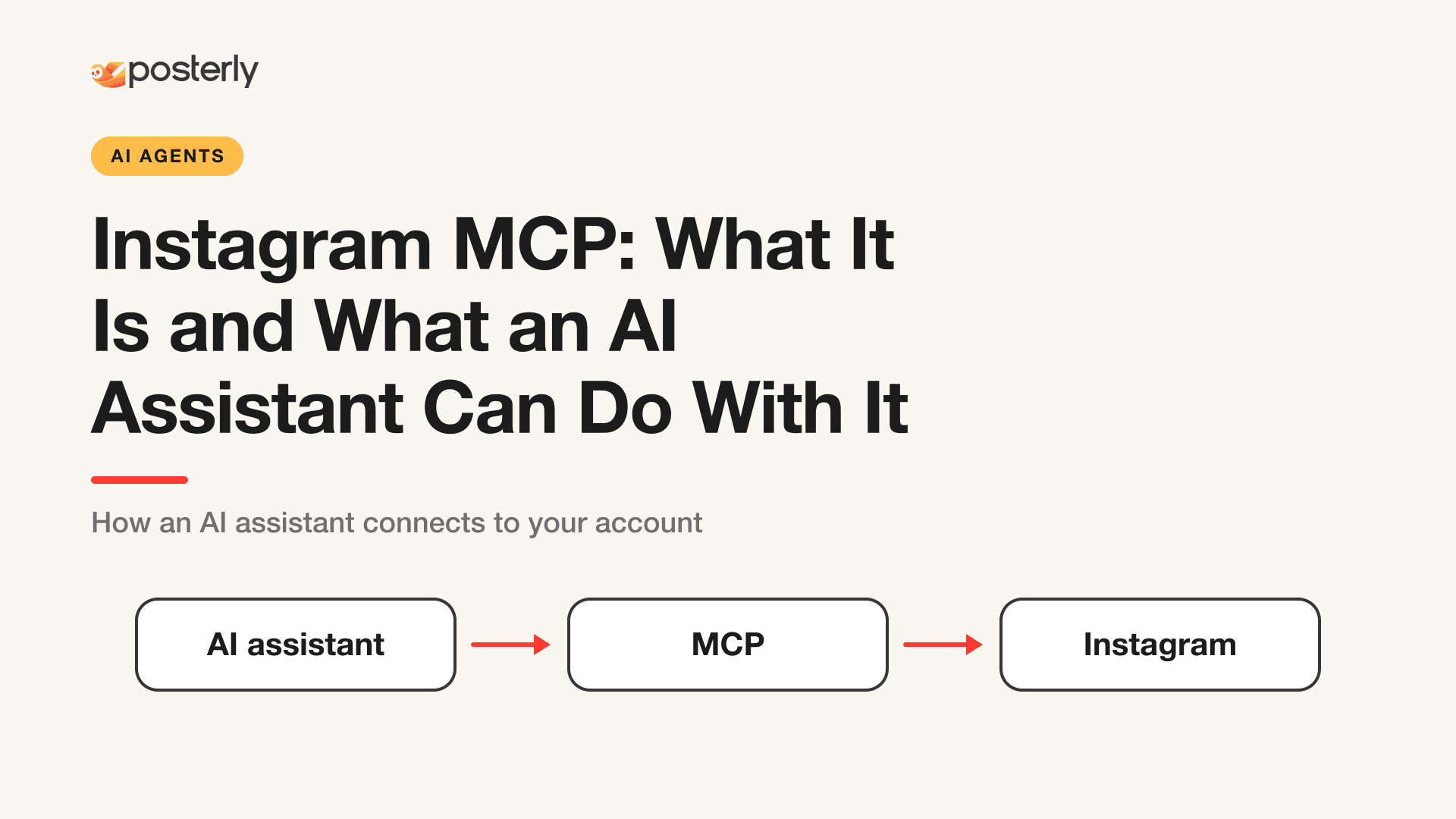
Blog
Instagram MCP: What It Is and What an AI Assistant Can Do With It
An Instagram MCP server lets Claude or ChatGPT schedule feed posts, carousels, Reels and Stories and read analytics, comments and DMs. Here is how the connection works.
Blog
How to Use posterly with ChatGPT: Custom MCP to First Approved Schedule
The advanced path: turn on ChatGPT developer mode, add posterly as a custom MCP app, then validate a draft before anything is scheduled. The plugin listing is the main way to connect.
Blog
How to Use posterly with Claude: Custom Connector to First Approved Schedule
Add posterly as a custom Claude connector (Free plans get one slot), pay in the browser, then validate a draft before anything is scheduled. claude.ai uses a drop page for laptop files.
Blog
How to Use posterly with Cursor: MCP in the IDE to First Approved Schedule
Add posterly to Cursor with local stdio or hosted HTTP for Cloud Agents, then validate a draft before anything is scheduled. Desktop can PUT laptop files. Cloud Agents use a drop page or signed upload.