Changelog

Every feature, improvement, and fix we've shipped, 71 updates and counting.

May 2026

14 updates

Facebook Page analytics and Instagram inbox controls

2026.05.25.1

Facebook Page analytics and Instagram comment management are now ready for production accounts.

feature
facebook
instagram
analytics
inbox

Facebook analytics and Instagram inbox are ready

posterly can now turn on Facebook Page analytics and Instagram comment management for production accounts.

Facebook Page analytics

Facebook and Meta connections can now enable Page-level performance in Analytics.

Once a Facebook Page is reconnected, posterly can sync:

  • Page followers
  • Page views
  • Page engagement
  • Profile views
  • Facebook post interactions

If you want Facebook analytics active, please reconnect your Facebook or Meta account.

Instagram inbox and comments

Instagram direct connections can now use comment management in production.

That powers Instagram comment workflows in Inbox, including:

  • Reading comments on recent media
  • Replying to comments from posterly
  • Hiding or deleting comments when needed
  • First-comment support after publishing
  • Comment automation rules for moderation and reply workflows

If you want Instagram comments and Inbox active, please reconnect from the Instagram button. Meta-connected Instagram accounts are for Meta/Facebook-linked publishing workflows; Inbox uses the direct Instagram connection.

What to do

Open Connected Accounts, reconnect Facebook or Meta to enable Page analytics, and reconnect from the Instagram button to enable comments and Inbox.

After reconnecting, open Analytics to sync Facebook performance, or Inbox to manage Instagram comments.
Instagram first comments

2026.05.25.2

Add a first comment to Instagram posts so hashtags or extra context can go out right after the post publishes.

feature
instagram
composer
publishing

Keep your Instagram captions cleaner

You can now add an optional first comment when scheduling Instagram feed posts, Reels, and carousels.

First comments are commonly used for hashtags, extra context, product details, or anything you want close to the post without crowding the main caption. When the Instagram post publishes, posterly posts the comment immediately after it.

How to use it

  1. Open the composer
  2. Select an Instagram account
  3. Write your caption as usual
  4. Add your hashtags or extra text in the First comment box on the Instagram tab
  5. Schedule or publish the post

The first comment applies to Instagram only. If you are posting to multiple platforms at once, your other captions will not include it.

Where it works

Instagram first comments are available for:

  • Feed posts
  • Reels
  • Carousels

Stories do not use first comments, so the field is disabled when you are scheduling an Instagram Story or Story Series.

Do I need to reconnect Instagram?

New Instagram connections ask for the comment permission automatically.

If your Instagram account was connected before comment management was available, or if a first comment does not appear after a post publishes, reconnect from Connected Accounts:

  • Use the Instagram button for direct Instagram connections.
  • Use the Meta option if you publish through a Meta-linked Instagram account.

Once the account has the right permission, you can keep using first comments without changing your workflow.

A note on reliability

The post itself stays the priority. If Instagram publishes the post but rejects the first comment, posterly keeps the post marked as published and records the comment issue separately so you can follow up without losing the post.

TikTok photo slideshows

2026.05.25.3

Build TikTok photo slideshows in the composer, schedule them, then finish the final post from your TikTok inbox.

feature
tiktok
composer
publishing
carousel

TikTok slideshows are now supported

You can now create TikTok photo slideshows directly from posterly. Select a TikTok account, upload multiple photos, arrange the order, preview the slideshow, and schedule it with the rest of your content.

When the scheduled time arrives, posterly sends the post to your TikTok inbox. Open the TikTok app, review it, and tap Post. It will not appear publicly until you finish that step in TikTok.

What is included

  • Slideshow setup in the composer: upload, crop, remove, and reorder photos before scheduling.
  • TikTok preview: step through the slideshow preview before it goes out.
  • TikTok details in one place: add a title and disclosure details where needed.
  • Inbox handoff: TikTok receives the scheduled post, then you approve it from the TikTok app.
  • Image preparation behind the scenes: posterly prepares TikTok-compatible image files at publish time.

What to expect

TikTok photo slideshows are for still images. Videos still use the regular TikTok video workflow.

For now, TikTok requires one final manual approval step in the TikTok app. We will keep improving the flow as TikTok expands Direct Post access.

Why this matters

TikTok slideshows are quick to make, easy to reuse from photo assets, and useful for launches, product roundups, how-tos, recaps, and before-and-after posts. Now you can plan them in the same calendar as everything else.

Try it from the composer by selecting TikTok and uploading two or more photos.

Pinterest Video Pins in composer, API & MCP

2026.05.20

Pinterest video Pins + cover images are now fully supported across posterly:

  • Composer: Schedule a single video Pin, extract a frame or upload a custom cover, and keep carousel Pins image-only.
  • Public API v1 (/api/v1/posts, create_posts_batch): Pass post_type: "video", a single video media URL, platform_settings.cover_image_url (or video_cover_url), plus the required board_id. Validation now correctly accepts video Pins (single video, no mixing with images or carousels).
  • MCP / Agent tools: get_platform_schema("pinterest") now surfaces post_type (image/video/carousel), cover_image_url, and an updated example. The create_post tool description and settings handling include video Pins.
  • Platform discovery: GET /api/v1/platforms and the /api-platforms page reflect the complete capabilities.

This brings the dashboard composer, external API, and AI agent interfaces into parity so power users, Zapier-style automations, and MCP agents can schedule video Pins the same way.

How to use (API example)

{
  "account_id": 123,
  "caption": "Check out the new launch video ✨",
  "post_type": "video",
  "media_url": "https://.../launch.mp4",
  "platform_settings": {
    "board_id": "9876543210",
    "title": "Launch video",
    "cover_image_url": "https://.../cover.jpg"
  }
}

Notes:

  • Video Pins still require a public, fetchable cover image (JPEG/PNG). The same validation and HEAD checks used in the dashboard apply.
  • Carousels remain image-only (2–5 images).
  • We continue to use the direct video_url source for simplicity and reliability with Supabase media. The official Pinterest media registration + video_id flow is noted in code for future migration if processing volume grows.
  • No new OAuth scopes required — your existing pins:write connection works.

See the updated platform schema docs and call get_platform_schema before building Pinterest automations.

Related: Pinterest analytics & video covers changelog


Bonus: As part of the platform API audit, we also published a detailed implementation plan for Bluesky video support (3-minute clips, proper app.bsky.embed.video + video.bsky.app processing flow). The plan is tracked in docs/planning/bluesky-video-support.md and will be executed on a follow-up branch once Pinterest ships. Bluesky remains the last production platform without native video — coming soon!

A much larger posterly API v1

2026.05.17.1

The public API now covers platform discovery, account schemas, connection handoff, upload-from-url, post lifecycle controls, and repair workflows.

feature
api
automation

API v1 is now a real automation surface

We expanded posterly API v1 beyond basic scheduling so agencies, internal tools, and AI agents can inspect capabilities before they act.

What is new

  • GET /api/v1/platforms returns supported platforms, settings, media limits, helper tools, analytics support, and planned integrations.
  • GET /api/v1/accounts/{id}/schema gives account-specific settings guidance.
  • POST /api/v1/platforms/trigger exposes helper actions such as Pinterest boards, YouTube playlists, TikTok creator info, LinkedIn mentions, and X quota checks.
  • POST /api/v1/media/upload-from-url fetches remote media safely with SSRF and size checks.
  • GET /api/v1/connect and GET /api/v1/connect/{platform} help external workflows guide users into the right connection flow.
  • DELETE /api/v1/accounts/{id} disconnects accounts with the same cleanup path used in the dashboard.

Post lifecycle and repair

The API can now support more operational workflows:

  • PUT /api/v1/posts/{id}/status pauses, resumes, schedules, or returns posts to draft.
  • GET /api/v1/posts/{id}/missing explains what still needs to be fixed before publishing.
  • PUT /api/v1/posts/{id}/release-id repairs external release/group metadata.
  • DELETE /api/v1/posts/group/{group} cleans up grouped draft, scheduled, failed, or paused posts.

See the REST API docs and the API reference for the full shape.

Google Business review workflows via API, MCP & CLI

2026.05.17.2

Google Business Profile reviews, review links, profile audits, AI reply suggestions, and public reply management are now available outside the dashboard.

feature
google-business
api
mcp

Google Business is now automation-ready

Teams can now run common Google Business Profile review workflows through the public API, MCP, WebMCP, and CLI.

What is available

  • List reviews with rating and unanswered filters.
  • Generate the public Google review link for a location.
  • Run a live local-profile audit with practical recommendations.
  • Generate brand-aware AI reply suggestions before posting.
  • Post or delete owner replies after explicit confirmation.

These workflows are useful for local businesses, franchises, agencies, and support teams that need repeatable review operations without scraping the dashboard.

The CLI includes:

posterly gbp:reviews --account-id 123 --unanswered --pretty
posterly gbp:review-link 123 --pretty
posterly gbp:audit 123 --pretty
posterly gbp:suggest-reply --account-id 123 --star-rating 5 --review-text "Great service" --pretty
posterly gbp:reply --account-id 123 --review-name accounts/123/locations/456/reviews/abc --comment "Thanks Alex. Glad we could help." --confirm --pretty

MCP 0.19: 49 tools for social media agents

2026.05.17.3

posterly MCP now exposes 49 tools across posts, media, analytics, platform schemas, webhooks, OAuth clients, video, and Google Business workflows.

feature
mcp
api

The MCP server is now a full agent surface

posterly-mcp-server@0.19.0 expands the MCP package to 49 tools and aligns the HTTP and stdio transports around the same capabilities.

Highlights

  • Platform discovery with list_platforms, get_platform_schema, and trigger_platform_helper.
  • Safer posting tools for create, batch create, update, status changes, missing-content checks, release IDs, and group cleanup.
  • Media upload tools, including signed uploads and upload-from-url.
  • Analytics, activity, and webhook tools for unattended workflows.
  • Video generation discovery, cost estimation, generation, and job polling.
  • Google Business Profile reviews, review links, profile audits, AI reply suggestions, and reply management.
  • OAuth developer client management for public PKCE apps.

The MCP server card at /.well-known/mcp/server-card.json now derives its tool list from the same source as the HTTP MCP implementation, reducing drift between docs, discovery, and runtime.

Upgrade with:

npm install -g posterly-mcp-server@latest

or keep using:

npx posterly-mcp-server

OAuth developer apps and the posterly CLI preview

2026.05.17.4

Developers can create public OAuth + PKCE clients and use the first posterly CLI package for API, MCP, and automation workflows.

feature
api
cli
oauth

A developer platform layer is taking shape

posterly now supports self-serve public OAuth + PKCE developer clients for apps that need to act on behalf of a posterly user.

OAuth client management

New API endpoints:

  • GET /api/v1/oauth/clients
  • POST /api/v1/oauth/clients
  • PATCH /api/v1/oauth/clients/{clientId}
  • DELETE /api/v1/oauth/clients/{clientId}

Developer clients are user-owned, public PKCE clients. Redirect URIs are exact-match only, HTTPS is required except localhost, and client secrets are intentionally not part of this first pass.

CLI preview

The new posterly CLI package includes PAT auth, browser OAuth login, JSON output by default, and commands for accounts, posts, platforms, media, analytics, activity, webhooks, video, Google Business, and OAuth clients.

Example:

npx @posterly/cli@latest auth:login
npx @posterly/cli@latest whoami --pretty
npx @posterly/cli@latest platforms:schema --platform pinterest --pretty
npx @posterly/cli@latest posts:create --account-id 123 --caption "Launching soon"
npx @posterly/cli@latest oauth:create-client --client-name "Agency approval app" --redirect-uri https://agency.example.com/oauth/callback --scopes accounts:read,posts:read,posts:write --pretty

Use npx for the no-install flow. A global posterly command is available only after npm i -g @posterly/cli@latest succeeds.

The CLI is intended for local automation, CI scripts, agency workflows, and developers building on top of posterly.

Webhooks, activity logs & agent notifications

2026.05.17.5

posterly now exposes webhook subscriptions, signed test deliveries, activity feeds, and a notifications alias for agent workflows.

feature
api
webhooks
automation

Better automation needs better feedback loops

The public API now includes webhook and activity primitives so external systems can react to publishing outcomes without polling the dashboard.

New endpoints

  • GET /api/v1/activity
  • GET /api/v1/notifications
  • GET /api/v1/webhooks
  • POST /api/v1/webhooks
  • PATCH /api/v1/webhooks/{id}
  • DELETE /api/v1/webhooks/{id}
  • POST /api/v1/webhooks/{id}/test

Webhook deliveries are signed with X-Posterly-Signature using a timestamped HMAC format.

Supported events

  • webhook.test
  • post.created
  • post.updated
  • post.deleted
  • post.publishing
  • post.published
  • post.failed
  • account.disconnected
  • analytics.synced

This is the foundation for Make, n8n, internal reporting, Slack alerts, client-review workflows, and AI agents that need to know what happened after scheduling.

Schedule Instagram Trial Reels

2026.05.16

Toggle Trial Reel on any Instagram Reel in the composer to test it with non-followers first. Also available via the API and MCP.

feature
instagram
composer
api

What's new

Instagram's Trial Reels format lets you publish a Reel to non-followers first, gauge how it performs with a fresh audience, then decide whether to share it with your existing followers. posterly now supports scheduling Trial Reels directly from the composer, with full parity in the API and MCP.

How to use it

  1. Open the composer and select your Instagram account
  2. Upload a video and switch the post type to Reel
  3. In the Instagram options, toggle Trial Reel on
  4. Optionally turn on Auto-share if it performs well to let Meta share the Reel with followers automatically if Instagram decides it's performing
  5. Schedule or publish as normal

API and MCP

Trial Reels are part of the v1 API and MCP post-settings payload:

{
  "settings": {
    "post_type": "reel",
    "is_trial_reel": true,
    "graduation_strategy": "MANUAL"
  }
}

graduation_strategy defaults to "MANUAL" (you decide later inside Instagram). Set "SS_PERFORMANCE" to let Meta auto-share with followers if the Reel performs well.

Important: check account eligibility first

Meta controls which Instagram accounts can publish Trial Reels. posterly can send the Trial request through the Graph API, but it can't activate the feature for an account.

Before relying on Trial Reels here, open the Instagram app for that account, create a Reel manually, and check the final sharing screen. If the Trial toggle appears there, the account should be eligible. If it doesn't appear in Instagram, Meta will likely reject the post when posterly publishes it.

Notes

  • Trial Reels are Reel-only. They are not available on feed, carousel, or story posts.
  • Collaborators are not sent on Trial Reels. Instagram does not allow Collabs for this format.
  • If Meta rejects the Trial Reel, the post fails and can be rescheduled as a normal Reel.

See the full Instagram Trial Reels guide for the composer workflow and eligibility check.

AI Image Splitter

2026.05.15

Turn screenshots, collages, and source images into separate transparent PNG assets by drawing boxes around the parts you want to keep.

feature
ai
media
creative-studio

Split one image into reusable transparent assets

AI Image Splitter is now live in the Media Library and Composer.

Upload a screenshot, collage, or source image, draw boxes around the objects you want, and posterly generates each selection as a separate transparent PNG asset in your Media Library.

What is new

  • Draw-to-select extraction for quickly marking the parts of an image you want to turn into assets
  • Batch generation so one source image can become several reusable media-library items
  • Transparent PNG output designed for reuse in posts, carousels, thumbnails, and designs
  • Media Library integration so generated assets appear alongside your AI images, uploads, videos, and folders
  • Composer access for creating splitter assets while building a post
  • Selection management with naming, editing, resetting, and generated-result download controls

Why it matters

Useful creative material often starts life inside a bigger image: a product photo in a collage, a client logo on a screenshot, a person inside a training shot, or a prop you want to reuse later.

Instead of cropping manually and then fighting with background removal tools, you can now select the region once and let posterly create clean assets that are ready to reuse.

How to use it

  1. Go to Media Library or open the media tools in Composer
  2. Choose AI Image Splitter
  3. Upload the source image
  4. Draw one or more boxes around the assets you want
  5. Add optional direction, such as preserving label text or keeping object shadows
  6. Generate the assets and use them from your Media Library

This is especially useful for turning raw brand, gym, product, event, and behind-the-scenes images into reusable creative building blocks.

Media Library Folders

2026.05.09.3

Media Library now has folders, multi-select, drag-and-drop organization, and a richer right-click menu for faster asset management.

feature
media
workflow
organization

Your media library is now easier to organize

The Media Library has grown from a place to browse generated assets into a proper workspace for managing reusable content.

You can now group media into folders, move several assets at once, and use right-click actions to work faster without opening each item individually.

What is new

  • Folders for organizing images and videos by campaign, client, content batch, or approval status
  • Multi-select so you can select several assets and add them to a folder in one move
  • Drag-and-drop into folders for a more natural asset-management workflow
  • Right-click actions on media cards, including copy URL, download, add to composer, resize with AI, edit image, animate with Veo, open in a new tab, and edit in Design Studio
  • Folder-safe removal so taking an item out of a folder does not delete the underlying media file
  • Cleaner header with the noisy top-right item count removed

Why it matters

If you create a lot of content in posterly, the hard part is not just generating the asset. It is finding the right one again, grouping approved content, and getting it into the next workflow quickly.

Folders make the Media Library feel more like an asset manager: create a folder for a campaign, add approved images and videos, then keep building that collection over time.

How to use it

  1. Go to Media Library
  2. Create a folder for a campaign, client, or approved content batch
  3. Select one or more media cards
  4. Add them from the bulk folder control, right-click menu, or drag them onto a folder
  5. Right-click any single asset when you want to send it to Composer, Veo, Design Studio, or download it

This is a small interface upgrade with a big workflow payoff: fewer clicks, less hunting, and cleaner approved-content organization.

Pinterest Analytics and Video Covers

2026.05.09.2

Pinterest now has organic analytics in posterly, video Pins can use custom cover images, and the API plus MCP server can read Pinterest performance data.

feature
analytics
pinterest
mcp

Pinterest is now a fuller part of posterly

Pinterest publishing already worked in posterly. This update makes it much more useful after the post goes live, and gives video Pins better control before they publish.

What is new

  • Pinterest analytics in the Analytics dashboard with account-level trends, top Pins, content mix, and best-time reporting.
  • Pin-level performance metrics including impressions, saves, outbound clicks, Pin clicks, and engagement.
  • Pinterest spreadsheet exports so you can review daily and monthly performance alongside Instagram, LinkedIn, and Google Business.
  • Custom video Pin covers in the composer. Upload a JPEG/PNG cover or capture a frame from the video before scheduling.
  • Pinterest cover validation before publishing so oversized, unreachable, or unsupported cover images fail clearly instead of disappearing silently.
  • Pinterest analytics in the API and MCP server through get_account_analytics and get_post_analytics.

Why it helps

Pinterest is often a long-tail traffic channel, so the useful question is not just "did this post publish?" It is "which Pins are still earning impressions and outbound clicks over time?"

With this release you can:

  • Compare Pinterest growth and engagement without leaving posterly.
  • Spot Pins that drive traffic, not just saves.
  • Pull Pinterest performance into AI assistant workflows through MCP.
  • Give video Pins a polished, intentional cover instead of relying on a random frame.
  • Export Pinterest numbers for client reports or spreadsheet review.

Account scopes

Pinterest analytics uses the read scopes already requested by the posterly Pinterest connection: boards:read, pins:read, and user_accounts:read.

If your Pinterest account was connected before this analytics rollout, reconnecting it is still the cleanest way to make sure all granted scopes and account metadata are refreshed.

MCP update

posterly-mcp-server@0.8.1 includes the Pinterest analytics updates.

Upgrade with:

npm install -g posterly-mcp-server@latest

or keep using:

npx posterly-mcp-server

YouTube Analytics

2026.05.09.1

YouTube channel and video analytics now sync into posterly, with dashboard reporting, spreadsheet exports, API access, and MCP support for views, watch time, subscribers, likes, comments, and shares.

feature
analytics
youtube
mcp

YouTube analytics now lives inside posterly

You can now track YouTube channel and video performance in posterly Analytics, alongside Instagram, LinkedIn Company Pages, Google Business, and Pinterest.

This is focused on organic performance: views, watch time, subscribers, likes, comments, shares, and top videos. Revenue and other monetary analytics are intentionally out of scope.

What is live

  • YouTube channel analytics with subscribers, views, watch time, average view duration, likes, comments, and shares.
  • Top YouTube videos ranked by views, engagement, likes, comments, shares, watch time, or average view duration.
  • Video thumbnails and titles pulled from YouTube so performance rows are easier to recognize.
  • Daily trend charts for views and watch-time minutes.
  • Spreadsheet exports for YouTube subscribers, views, watch minutes, and subscriber movement.
  • REST API and MCP support through get_account_analytics and get_post_analytics.

Why it helps

YouTube performance is often a mix of reach and depth. A video can have fewer views but stronger watch time, or a lot of reach but weaker retention.

With this release you can:

  • Review YouTube performance without leaving posterly.
  • Compare channel growth and video performance alongside other platforms.
  • Pull YouTube analytics into assistant workflows through the MCP server.
  • Export watch-time and subscriber history for client reports.
  • Reconnect older YouTube accounts once to unlock the new analytics scope.

Account scopes

YouTube analytics uses:

  • youtube.upload for publishing
  • youtube.readonly for channel and video metadata
  • yt-analytics.readonly for channel and video analytics

Existing YouTube connections need to be reconnected once so Google can grant the new yt-analytics.readonly scope. This is a non-sensitive scope and does not include revenue metrics.

The Google Cloud project also needs the YouTube Analytics API enabled, in addition to the existing YouTube Data API used for publishing and metadata.

MCP update

posterly-mcp-server@0.10.0 includes the YouTube analytics updates and the expanded API/MCP schema tools.

Upgrade with:

npm install -g posterly-mcp-server@latest

or keep using:

npx posterly-mcp-server

April 2026

15 updates

Tag users in Instagram Stories

2026.04.22

Meta opened up user tagging for Stories, posterly now sends your @mentions through when your image and video stories publish.

feature
instagram
composer

What's new

Instagram added user_tags support for Stories to the Graph API in July 2025. posterly now forwards your tags whenever you schedule an Instagram Story, image or video, so the mentioned accounts get notified the moment your story goes live.

This also works for:

  • Manual Stories scheduled from the composer
  • Story Series (each story in the series publishes with the same tags)
  • Also Post to Story companions, tags from the parent feed or reel post carry over to the story version automatically

How to use it

  1. Open the composer and select your Instagram account
  2. Switch the post type to Story
  3. Click the @ icon in the caption toolbar
  4. Enter the usernames you want to tag, comma-separated and without the @
  5. Schedule as usual, tags ship with the story when it publishes

Notes

  • Reels still don't support user_tags, no change there
  • Tagged accounts must be public or follow you (same rule as feed tagging)
  • No reconnection required, works with your existing Instagram connection

Threads long-form posts, up to 10,000 characters

2026.04.21

Threads now supports a 10,000-character text attachment that expands under your main post. posterly's composer lets you write it, format it (bold, italic, underline, strikethrough, highlight), and schedule it like any other post.

feature
threads
composer

What's new

Meta opened up long-form posts on Threads, instead of being stuck at 500 characters, you can now attach an expandable block of up to 10,000 characters to a standard Threads post. The short hook shows in the feed; readers tap "Read more" to expand the full body.

posterly now supports it end-to-end: write, format, schedule, publish.

How it works

  1. In the composer, pick your Threads account
  2. Under the 500-char caption, click Long-form text (up to 10,000 chars)
  3. Write your long-form body in the expanded textarea
  4. Select text and use the formatting toolbar for Bold, Italic, <u>Underline</u>, Strikethrough, or Highlight
  5. Optionally add a link attachment URL
  6. Schedule or post immediately, it fires through as a single post

Rules enforced up front

Meta has a few restrictions; posterly blocks invalid posts before you hit send:

  • Long-form posts are text-only, no images, video, or carousels on the same post.
  • Max 5 unique links across hook + long-form.
  • If the main post has a link attachment, the long-form body can't also have one (choose one or the other).
  • Main hook still capped at 500 chars, long-form capped at 10,000.

Why it matters

Until now, creators had to screenshot long thoughts or split them across multiple posts in a thread. The text attachment turns Threads into a real home for article-style content while keeping the feed readable, just the hook, unless the reader wants more.

This is live across all plans, no config needed. Pick a Threads account and the option appears in the composer.

Tag LinkedIn companies in your captions

2026.04.20

You can now @-tag other LinkedIn company pages directly from the posterly composer, live clickable mentions, notifications sent, no post-publish edits needed.

feature
linkedin
composer

What's new

Tagging a company in your LinkedIn caption used to mean either (a) editing the post on LinkedIn after you published, or (b) settling for plain text that doesn't notify or link anywhere. Now posterly does it for you, the tag comes out as a real blue clickable link, and the company gets a notification.

How it works

  1. In the composer, select your LinkedIn account
  2. Click the new @ icon in the caption toolbar
  3. Paste the company's LinkedIn URL (the one with numbers, like /company/18904665)
  4. Click Insert to drop the tag into your caption
  5. Publish, your mention lands as a live link on LinkedIn

If you paste a vanity URL (/company/name) and you don't administer the company, posterly can't always resolve it. The popover points you to a one-click trick, open the company's LinkedIn page, click See all employees, and paste that URL. We pull the numeric ID out automatically.

Recently tagged

Every company you successfully tag shows up as a quick-pick chip next time you open the popover. Tag Grassroots Creative Agency once and it's a one-click add on every future post.

Shared across workspaces

Your canonical-name lookups seed a shared cache. Once any admin of a company resolves its LinkedIn name through posterly, every other workspace gets the accurate name for free, so tagging a commonly-mentioned company usually just works after someone else has done it first.

Why the exact name matters

LinkedIn silently drops mentions where the display name doesn't match the company's canonical LinkedIn name exactly (case, spaces, punctuation all have to match). When you're an admin we auto-resolve it; otherwise type the name character-for-character from the company's LinkedIn profile. Full walkthrough in the docs.

LinkedIn limits

  • Companies only, LinkedIn's public API doesn't let third-party apps tag individual people
  • No self-tagging, you can't @-mention your own company page in a post you're authoring; LinkedIn strips those
  • Exact name match required, LinkedIn renders non-matching names as plain text with no link

Analytics in the API and MCP Server

2026.04.19

Read Instagram, LinkedIn, and Google Business Profile analytics from the posterly API and any MCP client. Two new tools, get_account_analytics and get_post_analytics, ship in posterly-mcp-server v0.5.0.

feature
api
mcp
analytics

Your analytics don't have to live in the dashboard. If you're already scheduling posts through the posterly API or an AI assistant, you can now pull your numbers the same way.

What's new

Two new endpoints on the REST API:

  • GET /api/v1/analytics/accounts, daily snapshots plus a period summary. Social platforms return follower delta, reach, views, and engagement rates; Google Business Profile returns dashboard-native location metrics such as Profile Views, Search Views, Maps Views, Customer Actions, and Posts.
  • GET /api/v1/analytics/posts, per-post engagement (likes, comments, reach, impressions, saves, shares, plays), most recent first, with pagination.

Both endpoints support Instagram, LinkedIn, and Google Business Profile. Default range is the last 30 days.

MCP tools

posterly-mcp-server@0.5.0 adds two tools for AI assistants:

  • get_account_analytics, "How did my Instagram perform last month?"
  • get_post_analytics, "Which of my LinkedIn posts got the most engagement in April?"

Works in Claude Desktop, ChatGPT, Cursor, Windsurf, Cline, Zed, and any other MCP-compatible client. If you use Open Claw, the posterly skill picks up the new tools automatically too, ask from WhatsApp, Telegram, Slack, or Discord.

Upgrade with npm install -g posterly-mcp-server or re-run npx posterly-mcp-server.

New scope, already applied to your keys

There's a new analytics:read scope. Existing active API keys have been backfilled automatically, so nothing to regenerate. New keys get it by default.

See the API docs and MCP docs for full details.

Analytics Spreadsheet View

2026.04.18

Analytics now includes a dedicated spreadsheet view for single accounts, with monthly and daily history, red/green change cells, downloadable Excel exports, and CSV export.

feature
analytics
reporting
exports

Graphs are great. Sometimes you just want the spreadsheet.

Graphs are great for spotting patterns, but sometimes you just want to see day vs day, month vs month, or scan a full year in one clean visual report.

That is why we built Analytics Spreadsheet: a dedicated spreadsheet-style analytics view inside posterly for a single connected account at a time.

What is live

  • A separate full-screen spreadsheet page for one analytics account at a time
  • Month and Day views built from your synced analytics history
  • Previous-period change columns beside each metric
  • Weighted red and green cells so improvements and drops are easy to scan
  • Sticky headers and a wide-table layout for longer reporting ranges
  • CSV export for the current visible view
  • Excel export with formatting, including bold headers and colored change cells

What it is good for

  • Reviewing performance month by month
  • Comparing day by day movement without jumping between charts
  • Looking across a longer reporting range, including a full year when enough history is synced
  • Downloading something cleaner for clients, internal reporting, or spreadsheets you want to keep locally

What it works with

The spreadsheet works with the analytics platforms currently supported in posterly:

  • Instagram
  • LinkedIn Company Pages
  • Google Business

Each platform shows the most relevant metrics available for that account, so the columns change depending on the source.

How to use it

  1. Go to Analytics
  2. Select a single connected account
  3. Click Spreadsheet View
  4. Switch between Month and Day
  5. Export as CSV or Excel when you need to download it

Good to know

  • This first release is single-account only
  • The spreadsheet runs from the first synced date to the latest available synced date
  • Excel keeps the visual formatting, while CSV is a plain-data export
  • Google Business rows still depend on when Google publishes daily values

Google Business Analytics

2026.04.17

Analytics now supports Google Business Profiles alongside Instagram and LinkedIn, with location-level visibility and customer-action metrics pulled straight into posterly.

feature
analytics
google-business

Analytics now covers Instagram, LinkedIn, and Google Business

posterly Analytics now supports Google Business Profiles, alongside Instagram and LinkedIn Company Pages.

That means you can track local-business visibility from the same analytics area you already use for your social accounts, without jumping back into Google Business Profile.

What is live

  • Google Business account support inside Analytics
  • Manual sync for connected Google Business locations
  • Visibility + actions trend chart over your selected date range
  • Google Business KPI cards for Profile Views, Search Views, Maps Views, Customer Actions, and Posts
  • Cross-platform analytics support across Instagram, LinkedIn Company Pages, and Google Business

What the numbers mean

Google Business is not normal post-by-post social analytics.

These numbers are about how people discover and interact with your business listing:

  • Profile Views: total visibility across your Business Profile
  • Search Views: how often your listing was seen in Google Search
  • Maps Views: how often your listing was seen in Google Maps
  • Customer Actions: actions taken from the listing, such as clicking through or interacting with the profile
  • Posts: the current number of Google Business posts on the connected profile

So think of this view as local visibility analytics, not a top-post or engagement dashboard like Instagram or LinkedIn.

How to use it

  1. Go to Analytics
  2. Select your connected Google Business location
  3. Hit Sync
  4. Use the date range picker to review visibility and customer-action trends

Good to know

  • This release is for Google Business Profile location analytics
  • It is best used to understand Search visibility, Maps visibility, and listing actions
  • It does not behave like Instagram or LinkedIn post analytics, because Google exposes different kinds of reporting for business profiles
  • Instagram, LinkedIn Company Pages, and Google Business are now all supported inside Analytics

Also Post to Instagram Story

2026.04.16.3

Toggle on Also post to Story in the composer and posterly will publish the same image or video as an Instagram Story right after your feed post or reel goes live.

feature
instagram
publishing

Publish a Story alongside your feed post or reel

Want your feed posts and reels to also appear in your Story? Now you can ship both at once from a single scheduled post.

How it works

  1. Open the composer and select your Instagram account with media attached.
  2. In the Instagram Post Type selector, pick Feed Post or Reel.
  3. Toggle on Also post to Story, the switch sits right below the post type buttons.
  4. Schedule or publish as normal.

When the main post publishes successfully, posterly creates a second Story using the same media.

A few things to know

  • It is not the native "Share to Story" reshare. Instagram's Graph API does not expose that. posterly publishes the same media as a separate, independent Story, no "tap to see original post" card back to the feed post.
  • Best with 9:16 vertical media. Reels are already a good fit. Square or landscape images will show with black bars on the Story.
  • Not available for carousels.
  • No stickers, text overlays, polls, or links on the Story. Instagram's API does not support interactive elements on API-published Stories.

Where to find it

Composer → Instagram Post Type card → Also post to Story toggle.

Instagram Mixed Image + Video Carousels

2026.04.16.2

You can now schedule Instagram carousels that mix photos and videos in the same post, previously they'd fail with a confusing error.

fix
instagram
publishing

Mixed carousels now publish reliably

Scheduling an Instagram carousel with a mix of photos and videos in the same post now works. Previously, Instagram would reject these with a confusing "image_url is required" error that didn't give you anything to go on.

What changed

  • Videos inside mixed carousels now get tagged correctly when we send them to Instagram. Instagram recently changed how they want this flagged, and we weren't doing it, so they'd reject the whole post.
  • No change to your workflow, just add your photos and videos to the same carousel as usual.

Instagram's own rules still apply

  • All items must share the same aspect ratio (4:5, 1:1, or 1.91:1)
  • Max 10 items per carousel

If one item breaks Instagram's rules, the whole post will still fail, but you'll now see Instagram's actual reason instead of the misleading one.

Manual Story, schedule it here, post it yourself

2026.04.16.1

Schedule Instagram or Facebook Stories that posterly reminds you to post manually. One email, 5 minutes before the scheduled time, with the media, the account, and your link sticker URL, perfect when you need the native Share to Story flow.

feature
instagram
facebook
stories

When the Stories API gets in your way

Instagram's Stories API posts standalone Stories, it can't replicate the native "Share to Story" flow with a tap-through to your feed post. If that's what you actually want, posting through any scheduler (including posterly) will always fall short.

Manual Story solves that. Schedule the post in posterly as usual, media, account, timing, optional link sticker URL, but flip the new toggle on. We won't auto-publish anything. Instead, we'll email you 5 minutes before the scheduled time with everything you need to post it yourself from the Instagram or Facebook app.

How it works

  1. In the composer, pick Instagram or Facebook and select Story or Story Series
  2. Toggle on Manual story, I'll post it myself
  3. Optional: paste a URL you'll add as a Story link sticker, we'll include it in the reminder
  4. Save as normal

The post lands in your dashboard with the Your turn to post status. When the scheduled time gets close, we send one email with:

  • The target account (platform + username)
  • The media file with a download link
  • Your optional link sticker URL, formatted for copy-paste
  • A direct link back to the post so you can mark it posted

For a Story Series, you get one email listing every slice with its post time, no inbox spam.

After you've posted

Click Mark as posted in the email (or inside the post in posterly) and the status flips to Published. For a Story Series, marking one slice marks the whole series at once.

If life happens and you never post it, posterly just leaves it in Awaiting, no auto-failure, no follow-up email, no noise. Delete it when you're ready.

Why this is opt-in, not default

Most Stories work fine through the API. Manual Story adds a small amount of friction (one manual step per Story), so we only want it on when the native Share to Story behavior is actually the point. Leave the toggle off for anything else and posts go out automatically like always.

LinkedIn Company Page Analytics

2026.04.11

Track LinkedIn company-page impressions, clicks, page views, engagement, and top posts inside posterly, with sync, exports, and report emails built in.

feature
analytics
linkedin

LinkedIn analytics now lives inside posterly

You can now track LinkedIn Company Page performance from the same Analytics dashboard you already use for Instagram.

No more bouncing between LinkedIn Page Analytics and your scheduler just to understand what is working.

What is live

  • LinkedIn company-page KPI cards for followers, impressions, engagements, clicks, and page views.
  • Top-performing posts ranked by engagement, impressions, clicks, reactions, comments, or shares.
  • LinkedIn engagement breakdown so you can see reactions, comments, shares, and clicks in one place.
  • Performance trend charts across your selected date range.
  • Best Time to Post heatmap based on your synced post history.
  • PDF exports and email reports for LinkedIn analytics views.
  • Manual sync and background sync support for connected LinkedIn Company Pages.

What data gets pulled in

When you hit Sync, posterly pulls LinkedIn company-page analytics for:

  • post impressions
  • post clicks
  • reactions
  • comments
  • shares
  • page views
  • follower gains

How to use it

  1. Go to Analytics
  2. Select your LinkedIn Company Page
  3. Hit Sync
  4. Use the date range picker, top-post sorting, PDF export, or email report tools

Good to know

  • This release is for LinkedIn Company Pages only.
  • Personal LinkedIn profile analytics are not included in this release.
  • Follower-growth history may need a little time to build if your page does not have many stored daily snapshots yet.
  • Available on Pro, Power User, and Agency plans.

Instagram Collaborators for Meta-Linked Accounts

2026.04.10

Instagram collaborators are now available for Meta-linked accounts, collaborator details show up across post views and review screens, and duplicate Instagram connections are handled more cleanly in the composer.

improvement
instagram
publishing

Collaborator posts are now live on Instagram

You can now add Instagram collaborators directly in the composer when the selected Instagram account is connected through the new Meta flow.

What changed

  • Instagram collaborators can now be added in the composer for supported Instagram feed posts, carousels, and reels.
  • Collaborators are only enabled for Meta-linked Instagram accounts so basic direct Instagram publishing keeps working without extra permissions.
  • Post details now surface collaborator and Instagram tag info in the composer preview, post modal, list and card views, compact table rows, and client review screens.
  • Duplicate Instagram connections are handled more intelligently in the composer by collapsing direct-login and Meta-linked versions of the same profile into a single smarter picker row.

How to turn it on

  1. Go to Accounts.
  2. Connect or reconnect Instagram using the new Meta option.
  3. Make sure your Instagram professional account is linked to a Facebook Page.
  4. In the composer, choose the Meta-linked Instagram account.

If your account already shows Meta-linked, you are ready to use collaborators right away.

A few limits to know

  • Collaborators are currently available for feed posts, carousels, and reels.
  • Stories do not support collaborators.
  • Direct Instagram login still works for normal Instagram publishing, but it does not unlock collaborators.

Client Review Now Shows Live Publish State

2026.04.09

Client review is clearer end to end: overdue approvals publish immediately, review and publish status are shown separately, live View post links appear for published posts, and review history stays visible.

improvement
approvals
workspace

A clearer handoff from approval to publishing

We tightened the client approval flow so reviewers and internal teams can both see what is happening after a post is approved, especially when the scheduled time has already passed.

What changed

  • Overdue approvals now publish immediately instead of bouncing back into approval when the content has already been approved and the scheduled time is in the past.
  • Review status and publish status are now shown separately so a client can tell the difference between "approved" and "already published."
  • Reviewer dashboards now show live View post links whenever posterly has the public platform URL.
  • Grouped review items still stay together across linked platform versions, with publish state shown alongside approval state.
  • Comments and decisions stay visible in the review history so teams and clients keep the full context.
  • Activity feeds are clearer about the difference between queueing an immediate publish and an actual successful publish.

Why this matters

Client approval is not the same thing as platform delivery. This update makes that distinction obvious in the UI, removes a confusing edge case for overdue approvals, and gives reviewers a direct path to the live post once it is published.

LinkedIn Carousels, Two Ways

2026.04.07.2

Turn PDFs into swipeable LinkedIn document carousels and publish multi-image carousels from the same composer.

feature
linkedin
composer

More ways to win on LinkedIn

LinkedIn carousels are one of the best formats for reach, saves, and shares, and now you can publish both major carousel styles straight from posterly.

  • Upload a PDF to publish a native LinkedIn document carousel
  • Upload multiple images to publish a swipeable LinkedIn image carousel

No extra tools. No workaround-y export flow. Just pick the format that fits the story you want to tell and publish from the same composer you already use.

PDF document carousels

Perfect for:

  • lead magnets
  • checklists
  • case studies
  • product walkthroughs
  • slide-style explainers

When you upload a PDF, posterly automatically keeps the post LinkedIn-only so it publishes in the format LinkedIn expects.

Multi-image carousels

Now you can publish classic LinkedIn image carousels too:

  • launch reveals
  • before-and-after posts
  • step-by-step tutorials
  • customer stories
  • event recaps

Works for both personal profiles and LinkedIn Company Pages.

Good to know

  • PDF posts support one PDF per post
  • PDF uploads support files up to 50MB in posterly
  • Multi-image carousel posts publish multiple images in a single LinkedIn post

Safer Scheduling, Sticky Filters & Smarter Cropping

2026.04.07.1

A cleaner day-to-day workflow: review exactly where a post will publish before it goes out, keep your filters when switching views, see approval state everywhere, and crop images without unexpected framing.

improvement
composer
dashboard

Less second-guessing, fewer wrong-account mistakes

We tightened the everyday publishing flow across posterly so it is easier to spot where a post is going, keep your place in the dashboard, and make image edits without fighting the crop tool.

What changed

  • Pre-publish review step, Before you post now or schedule, posterly now shows a clear summary of the workspace, client, destination accounts, media type, post count, and timing.
  • Extra confirmation for risky destinations, If the selected accounts look mismatched, posterly asks for a stronger confirmation before anything goes live.
  • Filters now stay with you, Move between list, card, table, and calendar views without losing your active filters.
  • Approval state is visible in the views, Posts waiting on a client, approved, rejected, or requesting changes now show that state directly in the dashboard views, not just inside the post modal.
  • Smarter image cropping, Clicking Edit crop now opens in the image's original ratio first, so existing framing is respected instead of starting from an awkward default crop.
  • Clearer batch conversions, Bulk media actions now explicitly say Convert all to square 1:1 or Convert all to 4:5 portrait, so it is obvious when posterly is changing the actual assets.

Why this matters

When you're juggling multiple brands, accounts, approvals, and media sets, small UX mistakes get expensive fast. This update is about making posterly feel more trustworthy in the moments that matter most: right before publishing, while reviewing queued posts, and while adjusting creative.

Good to know

  • The review step is designed to prevent accidental posting to the wrong destination accounts before a post is published or scheduled.
  • Filters now carry across dashboard views so you can investigate the same slice of posts in whichever layout is most useful.
  • Edit crop keeps the image's current framing by default. Conversion presets remain optional.

YouTube Tags, Privacy, Category, Playlists & Shorts Thumbnails

2026.04.03

Full YouTube publishing controls, tags for SEO, privacy selector, video category, playlist assignment, made-for-kids toggle, and AI thumbnail generation for both regular videos and Shorts.

feature
youtube
thumbnails

Everything YouTube, in one place.

We completely rebuilt the YouTube publishing experience. Instead of scattered settings across the composer, there's now a single unified YouTube Settings card with every option the YouTube API supports, right below your caption.

What's new

  • Tags, Add comma-separated tags to help viewers find your video. YouTube uses these for search and recommendations. Total limit: 500 characters.
  • Visibility selector, Choose Public, Unlisted, or Private before publishing. Previously hardcoded to Public.
  • Video category, Pick from all 15 official YouTube categories (Education, Gaming, Music, Entertainment, etc.). Helps YouTube recommend your video to the right audience.
  • Playlist assignment, Select one of your existing YouTube playlists and the video is automatically added after upload. No more switching to YouTube Studio to organize content.
  • Made for kids, COPPA compliance toggle, required by YouTube. Set this if your content is directed at children.
  • Shorts thumbnails, AI thumbnail generation now supports both 16:9 landscape (regular videos) and 9:16 portrait (Shorts). The generator auto-detects your video format and opens with the correct preset.

How it works

  1. Select your YouTube account and upload a video
  2. The YouTube Settings card appears below your caption with all options
  3. A badge shows whether your video is detected as a Short or Regular video (Shorts = vertical + under 3 minutes)
  4. Fill in your title, tags, and settings
  5. Click "Generate with AI" for a thumbnail, it automatically picks the right aspect ratio
  6. Schedule or publish

Playlist note

Playlist assignment requires the broader youtube OAuth scope. If you connected YouTube before this update, disconnect and reconnect your account in Settings → Connected Accounts to enable playlist support. All other features work immediately.

March 2026

13 updates

Instagram Analytics

2026.03.25

A full analytics dashboard for Instagram, follower growth, engagement trends, top posts, audience demographics, story insights, and auto-sync.

feature
analytics
instagram

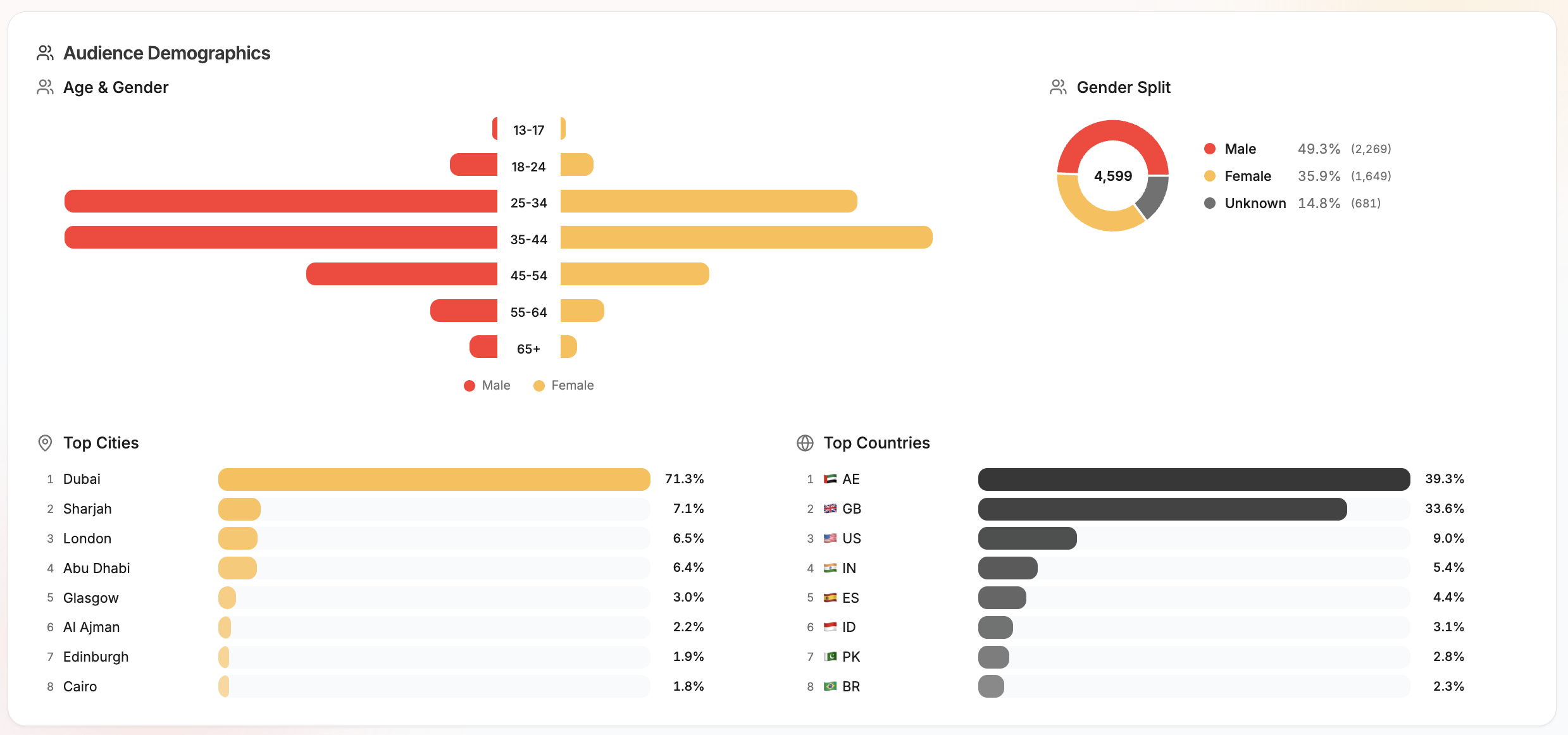
Instagram Analytics dashboard showing audience demographics, top cities, and top countries

Your Instagram data, all in one place.

We just launched Instagram Analytics, a dedicated dashboard that tracks everything that matters about your Instagram performance. No more switching between apps to understand what's working.

What you get

  • KPI Summary Cards, Followers, reach, views, and engagement rate at a glance, with period-over-period change indicators.
  • Follower Growth Chart, Track how your audience grows (or shrinks) over time with daily snapshots.
  • Reach & Views Chart, See how far your content travels, with impressions and reach plotted over your selected date range.
  • PostPulse Engagement, Every post's likes, comments, saves, and shares visualized in one interactive chart. Spot trends instantly.
  • Top Performing Posts, Your best posts ranked by engagement, reach, or saves. Sortable and clickable.
  • Reels Performance, Average watch time, replays, skip rate, and reposts for your Reels content.
  • Content Mix, Breakdown of your content types (images, carousels, reels) so you know what you're publishing most.
  • Best Time to Post, Heatmap showing when your audience engages most, based on your actual posting history.
  • Engagement Rate Trend, Track your engagement rate over time, calculated both by reach and by followers.
  • Audience Demographics, See your followers by age & gender (population pyramid), top cities, and top countries with flag emojis.
  • Story Insights, Active stories sync with reach, impressions, replies, taps, and exits.
  • Auto-Sync Every 6 Hours, Your data refreshes automatically in the background. No manual syncing needed.

How to get started

  1. Go to Analytics
  2. Select your Instagram account from the dropdown
  3. Hit Sync to pull in your data for the first time
  4. Explore your dashboard, use the date range picker to adjust the window

Good to know

  • Requires an Instagram Business or Creator account.
  • Audience demographics need at least 100 followers to display.
  • Analytics is currently Instagram only (beta). More platforms coming soon.
  • Available on Pro, Power User, and Agency plans.

Instagram Tagging & Facebook Colored Backgrounds

2026.03.24

Tag @usernames on Instagram posts and publish eye-catching colored background posts on Facebook, right from the composer.

feature
instagram
facebook

Tag people on Instagram, stand out on Facebook

Two highly requested features are here: Instagram user tagging for feed posts and carousels, and Facebook colored background posts for text-only updates.

What's new

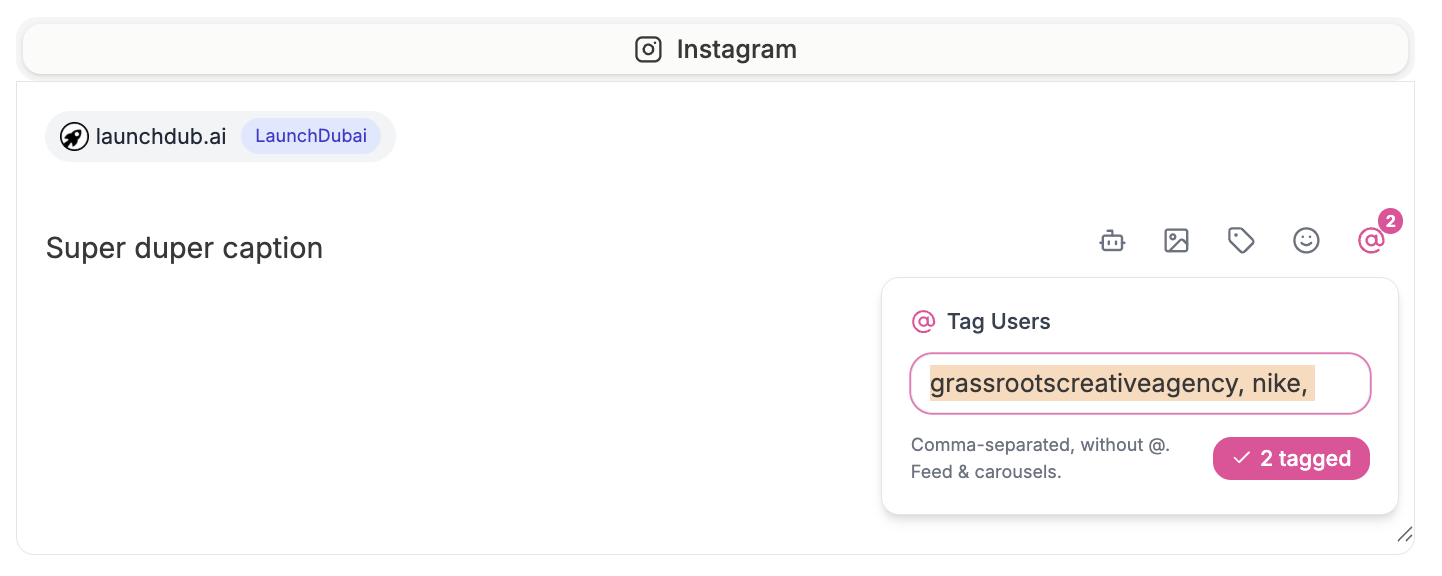
  • Instagram User Tagging, Tag @usernames directly from the composer. Enter comma-separated usernames and they'll be applied when your post publishes. Works on feed image posts and carousels.

Instagram user tagging

  • Facebook Colored Backgrounds, Choose from 8 gradient presets to give your text-only Facebook posts a bold, colorful background. Perfect for announcements, quotes, and engagement posts.
  • Live Preview, Both features update in real time in the post preview panel so you can see exactly how your post will look before publishing.

How to use it

Instagram tagging:

  1. Open the composer and select an Instagram account
  2. In the Instagram tab, click the @ icon in the caption toolbar
  3. Enter usernames separated by commas (e.g. johndoe, janedoe, acmebrand)
  4. Tags are applied automatically when the post publishes

Facebook colored backgrounds:

  1. Open the composer and select a Facebook account
  2. In the Facebook tab, click the palette icon in the caption toolbar
  3. Click a color swatch to select a gradient, or click ✕ to remove it
  4. Write your caption and publish. The background only applies to text-only posts (posts with media use the standard layout)

Good to know

  • Instagram tagging works on feed image posts and carousels. Reels and stories don't support user tags via the API.
  • Facebook colored backgrounds only apply to text-only posts. If your post has an image or video, the background setting is ignored.
  • No additional permissions or reconnection needed, both features work with your existing connected accounts.

Pause & Resume Scheduled Posts

2026.03.23

Put any scheduled post on hold with one click. Resume when you're ready, your scheduled time is preserved.

feature

Hold Posts Without Losing Your Schedule

Ever needed to hold a post while you wait for approval, finalize copy, or simply aren't sure about the timing? Previously your only options were to save as draft (losing the scheduled time) or delete it entirely.

Now you can pause any scheduled post to put it in a holding pattern. The original scheduled time is preserved, and the post won't publish until you resume it.

What's new

  • Pause button on scheduled posts across all views (list, table, calendar, card)
  • Resume button to bring paused posts back to scheduled, if the time has passed, you'll be prompted to pick a new one
  • Bulk pause & resume in table view for managing multiple posts at once
  • Paused status filter in the dashboard to see all held posts
  • Paused posts can still be edited, duplicated, or saved as draft

How to use it

  1. Find a scheduled post in any view
  2. Click Pause (or the ⏸ icon in table view)
  3. The post moves to "Paused" status, it won't publish
  4. When ready, click Resume to bring it back

That's it. No confirmation dialogs, no lost data.

Multi-Page Designs & Unsplash in Design Studio

2026.03.22.3

Create multi-page designs like Canva, add, duplicate, reorder pages with per-page undo/redo, and browse millions of free Unsplash photos directly from the canvas.

feature

Design Studio Just Got a Major Upgrade

Two big additions to Design Studio that bring it much closer to a full design tool like Canva.

Multi-page designs

You can now create designs with multiple pages, perfect for carousel posts, slide decks, or story sequences.

  • Add pages using the "+" button in the new page strip on the left
  • Duplicate any page to reuse a layout with different content
  • Reorder pages by moving them up or down
  • Delete pages you no longer need (minimum one page always remains)
  • Per-page undo/redo, each page has its own independent history, so undoing on page 2 won't affect page 1
  • Per-page background colour, set a different background for each page
  • PageUp/PageDown keyboard shortcuts to quickly flip between pages

Multi-page export

When exporting a multi-page design, you can choose to download or use in a post:

  • Current page, exports just the active page
  • All pages, exports every page as separate images, perfect for carousel posts

Unsplash integration

Browse millions of free, high-quality stock photos without leaving Design Studio.

  • Click the Image tool and switch to the Unsplash tab
  • Search for any topic, landscapes, food, people, textures, anything
  • Filter by orientation, landscape, portrait, or square
  • Click to add any photo directly to your canvas at full resolution
  • Proper attribution included as required by Unsplash

Backward compatible

Existing single-page designs load exactly as before. The new multi-page format is stored alongside your existing designs with no migration needed.

New Platform Features: Polls, Alt Text, Reply Controls & More

2026.03.22.2

X/Twitter polls and reply settings, Threads reply controls, alt text for accessibility, and Google Business Profile event and offer posts.

feature

More Power Across Your Platforms

A batch of features that unlock capabilities the platform APIs support but posterly didn't expose yet, until now.

X/Twitter Polls

Create polls directly from the composer. Add 2-4 options, set a duration (5 minutes to 7 days), and publish. Polls and media are mutually exclusive per the X API, and polls can't be used in threads, the composer enforces both automatically.

Who Can Reply (X/Twitter & Threads)

Control who can respond to your posts on both X and Threads:

  • Everyone (default)
  • People you follow
  • Mentioned only

The setting appears in the composer toolbar for both platforms and applies to every post type, single posts, threads, and polls.

Alt Text for Accessibility

Add descriptive alt text to your images when posting to Instagram, X/Twitter, and Threads. The alt text input appears below your media preview (single images) or below each carousel item. Screen readers use this text to describe your images to visually impaired users.

Google Business Profile Events & Offers

GBP posts now support three post types:

  • Standard, the default, same as before
  • Event, add an event title, start/end date and time, and a call-to-action button (Book, Order, Shop, Learn More, Sign Up, or Call)
  • Offer, add a coupon code, redemption URL, and terms & conditions

Select the post type from the dropdown that appears when composing for a Google Business Profile account.

New Platforms: Telegram & Bluesky

2026.03.22.1

posterly now supports 11 platforms. Schedule and publish to Telegram channels/groups and Bluesky, no API keys or OAuth apps needed.

feature

posterly Now Supports 11 Platforms

Two new platforms join the lineup. Both use simple credential-based connections, no developer portals, no OAuth apps, no API keys.

Telegram

Post to Telegram channels and groups directly from posterly. Create a bot via @BotFather, add it as an admin to your channel or group, and paste the token in Accounts.

  • Text, photos, videos, and GIFs
  • Media groups, up to 10 photos/videos in a single message
  • HTML formatting in captions (bold, italic, links, code)
  • Public channel links generated automatically for published posts

Bluesky

Schedule posts to Bluesky with the same composer you use for everything else. Connect with your handle and an App Password.

  • Text and images, up to 4 images per post
  • Automatic rich text links, URLs in your caption are converted to clickable links
  • Custom domain support, works with any PDS, not just bsky.social
  • Session auto-refresh, tokens are refreshed automatically, with app password fallback

How to Connect

Head to Accounts in your dashboard. You'll see Telegram and Bluesky in the platform list. Both open a simple dialog, no redirects, no OAuth screens.

In-App Documentation

2026.03.19.1

Browse 40+ help articles covering every feature in posterly, with search, navigation, and keyboard shortcuts.

feature
docs

Every Feature, Documented

posterly now has a built-in documentation centre at Dashboard > Docs. Browse 40 articles across 12 categories covering every feature in detail.

What's included

  • Getting Started, Onboarding, connecting accounts, key concepts
  • Scheduling, Composer, calendar, list, table, and bulk upload
  • AI Features, AI Agent, captions, image generation, video creation
  • Creative Studio, Design Studio, media library, LinkedIn carousels, Google Drive import
  • Workspaces, Teams, roles, client approval flows
  • Google Business, Reviews, profile auditor, review request campaigns
  • Integrations, REST API, MCP server, Canva import
  • And more, Analytics, billing, labels, keyboard shortcuts, platform-specific guides

Search everything

Press ⌘/ while in docs to search across all articles instantly. Results show titles, descriptions, and categories.

Navigate naturally

Each article has previous/next links, breadcrumb navigation, and a collapsible sidebar. On mobile, the sidebar becomes a slide-out menu.

Always up to date

Every new feature ships with a corresponding docs page. As posterly grows, so does the documentation.

Find it in Settings > Docs in the sidebar.

Browse Posts with Arrow Navigation

2026.03.10

Navigate between posts using arrow keys or clickable buttons, no need to close and reopen the preview modal.

feature
improvement

Flip Through Posts Without Closing the Modal

When you're reviewing scheduled content, closing and reopening the preview modal for every post slows you down. Now you can navigate between posts directly from the modal.

How it works

  • Open any post from the calendar, list, table, or card view
  • Use the left and right arrow buttons on either side of the modal to move between posts
  • Or press the left/right arrow keys on your keyboard for hands-free browsing

Smart details

  • Arrow keys are disabled while you're editing a caption, so you won't accidentally navigate away mid-edit
  • Navigation buttons only appear when there's a previous or next post to move to
  • Your scroll position and any open menus reset cleanly between posts

Why this matters

If you're managing a week of content across multiple accounts, you can now review every post in sequence, checking captions, media, and scheduling times, without touching the close button once. It turns a repetitive click-open-close workflow into a smooth, continuous review.

Event Days on Calendar, Holiday Toggle, and Dashboard Tips

2026.03.09

Browse 370+ themed event days for content inspiration, toggle country holidays on and off, and discover new features right from your dashboard.

calendar
dashboard

Three quality-of-life updates that make planning content easier and help you get more out of posterly.

370+ event days, right on your calendar

Your calendar now includes fun and themed event days, World Pizza Day, National Coffee Day, International Dog Day, and hundreds more. Browse by category (Food & Drink, Animals, Tech & Science, Health & Wellness, and others) and toggle the ones you care about.

These show up directly on your calendar view, so you can spot content opportunities without leaving posterly.

Country holidays toggle

Public holidays for your country were already on the calendar, but now you can turn them off with a single toggle in the calendar toolbar. Useful when you want a cleaner view focused on your own scheduled content.

Dashboard tips and what's new

The dashboard welcome section now rotates helpful tips and latest feature announcements. Whether you are new to posterly or have been here a while, this keeps useful shortcuts and new capabilities visible without getting in the way.

AI Video Presets: One-Click UGC Templates

2026.03.08.1

Pick a preset, customise the prompt, and generate scroll-stopping UGC-style videos in seconds, powered by Veo.

feature
ai
video
ugc

Creating social-ready video content just got a lot faster. We added 6 ready-to-go video presets to AI Video, each designed around a proven UGC format.

Pick a style, hit generate

Instead of writing a prompt from scratch, tap a preset card and we pre-fill the prompt, aspect ratio, duration, and model for you. Tweak it to match your product, then generate.

Product Review preset

6 presets available now

  • Product Review, Person talking to camera, reviewing a product. Classic UGC format.
  • Testimonial, Authentic customer testimonial, warm home setting, direct-to-camera.
  • Unboxing, Overhead ASMR-style unboxing with elegant packaging reveals.
  • Day in the Life, Cinematic lifestyle montage, morning routine, golden hour lighting.
  • Product Showcase, Clean, rotating hero shot with studio lighting. Great for ads.
  • How-To Tutorial, Step-by-step hands-on demonstration, overhead angle.

Product Showcase preset

Day in the Life preset

Preview before you generate

Hover over any preset card to see a video preview of the style. Click the play button to watch it full-size in a modal, then hit "Use this preset" to load the settings.

What changed under the hood

  • Preset cards show hover-to-play video previews so you can see the style before generating
  • All preview videos are compressed thumbnails (under 1MB total), page loads stay fast
  • Videos now appear in your AI Images history with proper type labels and prompts from the Veo job

How to access

Go to AI Video in the sidebar. The presets appear at the top of the page, click any card to load it.

Workspaces Are Live: Team Seats, Clients, Guests, and Local Timezones

2026.03.08.2

Manage your agency setup in one place: team seats with roles, client/group containers, guest approval links, and client-level timezone scheduling (stored in UTC).

feature
workspace
collaboration
approvals
timezone

You can now run client work inside a proper Workspace in posterly.

A workspace is your top-level container for people, clients, and approvals.

What a workspace gives you

  • Team seats with roles (Owner, Admin, Publisher, Editor, Viewer)
  • Client/Group structure inside the workspace
  • Guest reviewers per client (non-paying users)
  • Client approval flow with comment, approve, request changes, and reject
  • Timezone defaults at workspace level, with client-level overrides

Why this matters

If you run an agency, you can now keep internal teammates and external clients separated while still collaborating in one system.

  • Team members get role-based access
  • Guests only see the client review scope you invite them to
  • Scheduling stays consistent across regions (UK, UAE, US, etc.)

Timezone model (important)

  • posterly stores schedule timestamps in UTC internally
  • Each client/group can have its own IANA timezone (for example Europe/London, Asia/Dubai)
  • Scheduling and review screens display times in that client timezone

Where to find it

Go to Dashboard → Workspace to:

  1. Set workspace defaults
  2. Invite team members
  3. Create clients/groups
  4. Invite guest reviewers
  5. Configure timezone per client

Current rollout

For now, plans include one workspace with plan-based limits on seats and clients/groups. This keeps setup simple while still enabling agency workflows.

MCP Server & Public API: Schedule Posts from Your AI

2026.03.04

Connect posterly to Claude, ChatGPT, Cursor, or any MCP client and schedule posts with natural language.

feature
api
mcp
integrations

posterly now has an MCP server and a public REST API, so you can schedule posts directly from the AI tools you already use.

Talk to your AI, posts appear on your socials

Connect posterly to Claude Desktop, ChatGPT, Cursor, Windsurf, or any MCP-compatible client. Then just say what you want:

  • "Post this photo to my Instagram tomorrow at 9am"
  • "Write a LinkedIn post about our product launch and schedule it for Monday"
  • "Show me my scheduled posts for this week"

What's included

  • List accounts, see all your connected social accounts
  • Create posts, schedule to any platform with captions, media, and platform-specific settings
  • Native controls, use Instagram collaborators, YouTube privacy and thumbnails, TikTok interaction settings, Pinterest boards, Google Business events/offers, X polls, Threads reply controls, and Bluesky alt text from API or MCP
  • Upload media, images up to 10MB, videos up to 50MB
  • Find available slots, smart scheduling finds gaps in your calendar
  • List posts, check what's scheduled, published, or in draft

Easy setup

Install the MCP server with one command:

npx posterly-mcp-server

Add your API key, and you're ready to go. Full setup instructions for every client are on the MCP page.

Pricing

API access is a $3/month add-on to any posterly plan. Enable it from your API & MCP page.

February 2026

8 updates

Post Activity Log: See Every Change at a Glance

2026.02.28

Track every edit, reschedule, and status change on your posts with a built-in activity timeline and inline caption diffs.

feature
activity-log
dashboard

Ever wondered what happened to a post between when you created it and when it went live? Now you can see the full story.

Activity timeline in every post

Open any post and expand the Activity Log section to see a chronological timeline of everything that happened, edits, rescheduling, status changes, media swaps, label updates, and more.

Inline caption diffs

When a caption is edited, you can click Show changes to see exactly what changed. Added words are highlighted in green, removed words in red with a strikethrough, so you always know what was tweaked.

Recent Activity on your dashboard

The dashboard overview now includes a Recent Activity widget showing your last 10 actions across all posts. It's a quick way to pick up where you left off.

What gets tracked

  • Post created, with post type and status
  • Caption edited, with inline word-level diff
  • Rescheduled, shows old and new dates
  • Status changed, draft, scheduled, published, failed
  • Media updated, when images or videos change
  • Labels changed, when you add or remove labels
  • Converted to draft, when you pull a post back
  • Duplicated, links back to the source post
  • Published immediately, when you skip the schedule

All activity is tied to your account and loads on demand, it won't slow anything down.

Bulk Upload: Post Types, Carousels & Story Series

2026.02.27.2

Upload up to 15 files, pick post types, group images into carousels or story series, and schedule everything in one go.

feature
bulk-upload
carousel
stories

Upload More, Click Less

Bulk Upload just got a major upgrade. You can now control the post type for every file and group images into carousels or story series, all before hitting schedule.

Global Post Type Default

A new row of pill buttons appears after you select accounts:

  • Auto, images become feed posts, videos become reels
  • Image / Reel / Story, override all items at once
  • Only types valid for your selected platforms are shown

Changing the default updates every ungrouped item that hasn't been manually overridden.

Per-Item Override

Each thumbnail now has a post type badge in the bottom-left corner. Click it to open a picker with options valid for that file type and your selected platforms.

  • Override one item and it stays locked, even when the global default changes
  • Videos can't be set to "Image"; images can't be set to "Reel"

Carousel & Story Series Grouping

When a carousel-capable platform is selected, each thumbnail gets a selection checkbox:

  1. Check 2-10 images
  2. A sticky action bar appears: Group as Carousel or Group as Story Series
  3. Grouped items collapse into a single stack card with a thumbnail strip

Carousels create a single post with multiple images (X/Twitter auto-truncates to 4). Story series create N staggered posts with a 30-second gap between each story.

Review & Schedule

  • Grouped items share one caption editor in the Review step
  • In Schedule, carousels count as 1 post per account
  • Story series show the stagger timing: "Story Series (3), 2:00 PM (+30s each)"
  • The summary reflects the actual post count

Validation Rules

  • Carousels: images only, 2-10 items (max 4 on X/Twitter)
  • Story series: 2-10 items
  • Reels: video files only
  • TikTok and YouTube: video only
  • Removing items from a group below 2 auto-ungroups
  • Switching platforms that drop carousel support auto-ungroups with a toast

Facebook Cover Photos: Update Your Page Look on Schedule

2026.02.27.1

Schedule Facebook Page cover photo updates alongside your regular posts. Upload an image, pick Cover Photo as the post type, and your page banner updates automatically.

feature
facebook
cover-photo

Your Facebook Page cover photo is one of the first things people see. Now you can schedule cover photo updates just like any other post.

How it works

  1. Select your Facebook Page account in the composer
  2. Upload a single image
  3. Choose Cover Photo from the post type selector
  4. Schedule or publish immediately

posterly uploads the image and sets it as your Page cover photo automatically via the Facebook Graph API.

Recommended dimensions

  • Desktop display: 820 x 312 pixels
  • Mobile display: 640 x 360 pixels
  • Minimum size: 400 x 150 pixels

For the best result across both desktop and mobile, use 820 x 462 pixels, Facebook will crop it differently on each device.

No caption needed

Cover photo updates don't require a caption. Just upload the image, select the type, and schedule.

Where to find it

Open the composer, select a Facebook Page, upload an image, and you'll see the Cover option in the Facebook Post Type selector alongside Post, Video, Reel, Story, and Story Series.

Get Reviews: Email Campaigns for Google Business

2026.02.05.1

Upload or paste your customer list, then Posterly sends Google review requests in batches with campaign tracking.

feature
google-business
email

Turn happy customers into more Google reviews

You can now send Google review request emails directly from Posterly, no extra tools, no spreadsheets, no copy/paste chaos.

How it works

  1. Go to Dashboard → Google Business → Get Reviews
  2. Choose a location
  3. Paste contacts (or upload a CSV)
  4. Click Start campaign

Posterly queues your campaign and sends emails in batches to respect daily sending limits.

Campaign insights (built in)

Track what’s happening over time:

  • Queued vs sent vs failed
  • Best‑effort open tracking
  • Reminder sends (optional)

Note: review links go directly to Google, so Posterly can’t attribute a specific review to a specific email.

Best practices

Please don’t offer incentives or ask for “5-star” reviews, Google may remove reviews or penalize listings.

LinkedIn Company Pages

2026.02.05.2

Connect LinkedIn Company Pages (not just personal profiles), then choose exactly which pages you want to keep connected.

feature
linkedin
publishing

Post to Your LinkedIn Company Pages

You can now connect LinkedIn Company Pages to Posterly and schedule posts to your brand pages, not just your personal profile.

Connect (and Choose Your Pages)

If you manage multiple pages, LinkedIn will return all of them. Posterly will then show a quick picker so you can keep only the pages you want connected.

How it works:

  • Go to Settings → Connect
  • Click LinkedIn Page
  • Select the pages you want to keep connected

Who Will See Pages Here?

You’ll see a Company Page available to connect if your LinkedIn user has the right admin permissions for that page.

Manage Anytime

You can disconnect pages anytime from Settings → Connect, and reconnect later if you need them again.

AI Agent: Cleaner, Faster Interface

2026.02.01.1

A refreshed AI Agent welcome screen with tap-to-mention accounts and quick action buttons.

improvement
ai
ux

A Cleaner Way to Start

We've redesigned the AI Agent welcome screen to be less cluttered and more interactive.

Tap-to-Mention Accounts

Your connected accounts are now compact, clickable chips. Tap any account to instantly add @username to your message-no more typing out account names.

  • Tap multiple accounts to build multi-platform commands
  • Platform shown via avatar icon (no more "(instagram)" labels)
  • Smaller footprint, same functionality

Quick Action Buttons

Instead of long example prompts, you now get four clean action buttons:

  • Write captions - Start generating AI captions
  • Find available time - Check your schedule for open slots
  • Schedule a post - Jump straight into scheduling
  • Start a campaign - Create multi-platform content series

Each button pre-fills your input with a helpful starting prompt.

Why We Made This Change

The old welcome screen showed every account with full labels and lengthy example prompts. With 10+ connected accounts, it became overwhelming. The new design gives you the same power in a fraction of the space.

Quick Caption Editing

2026.02.01.3

Edit captions directly from the post preview modal without opening the full composer. Plus, resizable caption textareas for more writing space.

feature
improvement

Edit Captions Without Leaving the Preview

We've made it faster to tweak your captions. Now you can edit them directly in the post preview modal, no need to navigate to the full composer for a quick text change.

Inline Caption Editing

How it works:

  • Click on any post card, list item, or calendar event to open the preview modal
  • Look for the pencil icon next to the "Caption" heading
  • Click it to transform the caption into an editable textarea
  • Make your changes, then hit Save

Smart details:

  • The Save button stays disabled until you actually change something
  • Your edits are saved instantly with a confirmation toast
  • Works for scheduled, failed, and draft posts
  • For X threads and Threads threads, you'll see a helpful message directing you to the full editor (thread editing requires the complete composer)

Resizable Caption Box in Composer

The caption textarea in the post composer is now vertically resizable. Drag the bottom-right corner to expand it when you need more writing space.

  • Minimum height: 192px (same as before)
  • Maximum height: 500px (prevents it from taking over the screen)
  • Perfect for longer captions on LinkedIn or detailed Instagram posts

Why This Matters

Small friction adds up. If you're managing dozens of posts and spot a typo in the preview, you no longer need to load the full composer, wait for media to reload, and navigate back. Just click, edit, save, done.

Smart Scheduling: Find Your Next Available Slot

2026.02.01.2

Automatically find the best time to post with one click. Available in the composer and AI Agent.

feature
scheduling
ai

Never Double-Book Your Posts Again

Finding the right time to schedule can be tedious-especially when you have multiple posts already lined up. Our new Smart Scheduling feature finds your next available slot automatically, ensuring a 1-hour gap between posts for optimal engagement.

In the Post Composer

Look for the "Next available" button next to the date picker. One click and we'll find your next open slot based on your existing schedule.

  • Respects a 1-hour minimum gap between posts
  • Considers your posting hours (8am - 10pm)
  • Works across all selected accounts
  • Auto-fills the date and time picker

In AI Agent

Just ask naturally:

  • "When can I post next?"
  • "Find an available time for @myaccount"
  • "What's my next free slot?"

AI Agent will show you up to 5 available time options and help you schedule from there.

How It Works

  1. We scan your scheduled posts for the next 14 days
  2. Find gaps of at least 1 hour between posts
  3. Skip times outside your posting hours
  4. Suggest the earliest available slot

Pro Tip

The feature works with multiple accounts-if you select 3 accounts, we'll find a slot that works for all of them. Perfect for cross-posting!

January 2026

7 updates

Smarter Account Connection Alerts

2026.01.27

Never miss a disconnected account again. Proactive alerts, in-app warnings, and clearer emails keep you informed before posts fail.

improvement
reliability

Stay Ahead of Disconnected Accounts

We've overhauled how posterly notifies you when a social account needs attention. Instead of finding out after a failed post, you'll now be warned early and often.

What's New

Proactive Email Alerts

  • Receive an email when your account token is expiring soon, days before it becomes a problem
  • Emails are color-coded by urgency: amber for expiring soon, red for expired
  • Consolidated emails so you get one message per account, not a flood

In-App Connection Banner

  • A new banner appears at the top of the dashboard when any account needs attention
  • Red for expired or disconnected accounts, amber for accounts expiring soon
  • One-click reconnect button takes you straight to settings

Composer Warnings

  • When selecting accounts in the post composer, accounts with token issues now show a warning icon
  • Red icon for expired accounts, amber for expiring soon
  • Hover for details on what's wrong and how to fix it

Smarter Failure Emails

  • When a post fails due to a token issue, you now receive a clear "Account Disconnected" email instead of a generic error code
  • The email explains why it happened and how to reconnect
  • Includes context about automatic token refresh

About Token Refresh

When you post regularly through posterly, your account tokens refresh automatically. Disconnections typically happen when an account has been idle for an extended period or when you change your password on the social platform. The best way to avoid disconnections is to keep a consistent posting schedule.

Instagram Grid Planner

2026.01.23

Visually plan and schedule your Instagram feed with drag-and-drop grid planning, bulk uploads, and automatic scheduling.

feature
instagram

Plan Your Perfect Instagram Feed

Introducing Grid Planner - a visual tool to design your Instagram feed before you post. See exactly how your content will look, arrange it perfectly, and schedule everything at once.

Features

Visual Grid Preview

  • See your planned posts alongside your 9 most recent Instagram posts
  • Drag and drop to reorder and achieve your ideal feed aesthetic
  • Real-time preview of how new content will flow with existing posts

Bulk Upload

  • Upload multiple images at once with a single drag-and-drop
  • Each image becomes a draft post ready for scheduling
  • Perfect for batch content creation workflows

Smart Bulk Scheduling

  • Schedule all posts at once with customizable intervals
  • Preset options: every 6 hours, 12 hours, daily, every 2-3 days, or weekly
  • Posts are scheduled in the correct order to maintain your grid layout

Caption Management

  • Click any grid cell to add or edit captions
  • Visual indicators show which posts need captions
  • Validation prevents scheduling posts without captions

How to Use

  1. Navigate to Grid Planner in the sidebar
  2. Select your Instagram account from the dropdown
  3. Use Bulk Upload to add multiple images at once
  4. Drag posts to reorder them in your desired grid layout
  5. Click each post to add captions and hashtags
  6. Click Schedule All to set up automatic posting

Pro Tips

  • Position 1 (top-left) will be your most recent post when published
  • Use the preview to see how your planned posts flow with existing content
  • Plan content in batches for consistent posting schedules
  • The grid shows 9 cells by default to match Instagram's 3x3 visible grid

Instagram & Facebook Reel Covers

2026.01.18

Create custom covers for your Instagram and Facebook Reels with AI generation, custom uploads, or video frame selection.

feature
ai
instagram
facebook

Custom Reel Covers Are Here

Take control of how your Reels look in feeds with our new Reel Cover feature. Choose from three powerful methods to create the perfect cover image for your Instagram and Facebook Reels.

Three Ways to Create Covers

1. AI Generate - Let AI create eye-catching 9:16 portrait covers optimized for mobile scrolling

  • Mobile-optimized composition
  • Vibrant colors and high energy
  • 4K quality output
  • 2 variations per generation (3 credits)

2. Upload Custom - Use your own cover image

  • Automatic aspect ratio validation (9:16)
  • Supports all common image formats
  • Free to use

3. Pick Frame - Select any frame from your video

  • Interactive video scrubber
  • Preview frames in real-time
  • Free frame extraction

How to Use

  1. Create a new post and select Instagram or Facebook
  2. Upload a video and select Reel as the post type
  3. The Reel Cover section will appear automatically
  4. Choose your preferred method:
    • Click Generate with AI to create a custom cover
    • Click Upload / Pick Frame to upload or select from video
  5. Your cover will be attached to the reel when published

Pro Tips

  • AI-generated covers work great for brand consistency
  • Frame selection is perfect when your video has a strong opening shot
  • Custom uploads give you complete creative control
  • All three methods are available for every reel you create

Card View for Posts

2026.01.09.1
feature
ui
views

Card View for Posts

We've added Card View as the fourth way to browse your scheduled posts, joining List, Table, and Calendar views.

What's New

Visual card layout with:

  • Large media thumbnails for posts with images/videos
  • Platform badges with color-coded icons
  • Post type indicators (video, carousel, image, text)
  • Status badges (scheduled, published, failed, draft)
  • Quick action buttons on every card

Perfect For

  • Visual browsing - See your content at a glance with media previews
  • Quick actions - Post now, edit, reschedule, duplicate, or delete without opening modals
  • Clean scheduling view - Hides posted content by default so you can focus on upcoming posts

Actions Available

Each card includes quick action buttons with proper confirmations:

  • Post Now - Publish immediately (with confirmation dialog)
  • Edit - Modify post content in composer
  • Reschedule - Change posting time via in-app modal with date/time picker
  • Duplicate - Select multiple dates to duplicate post to (with calendar modal)
  • Delete - Remove post (with confirmation dialog)

For published posts, you'll see a View Post button to open the live post on the platform.

Video Support

Card View now properly handles video posts:

  • Video thumbnails display correctly in card previews
  • Play button overlay indicates video content
  • Click to open full video player in post modal
  • Works across all views (List, Table, Calendar, Card)

How to Use

Switch to Card View using the view selector at the top of your dashboard, or navigate directly to /dashboard/card.

Card View automatically hides posted content to keep your view focused on upcoming scheduled posts.

Media Library

2026.01.09.2
feature
media
ai
studio

Media Library

Browse and manage all your AI-generated media in one place! The new Media Library gives you a dedicated space to view, search, download, and organize all media created with Nano Banana, Veo, Brand Visual Adapter, and other AI tools.

What's New

📚 Centralized Media Browser

  • View all your AI-generated media assets in one organized grid
  • Beautiful card-based layout with image previews
  • Quick stats showing total media, generated images, edited images, and brand adaptations

🔍 Smart Search & Filtering

  • Search by prompt - Find images by what you asked the AI to create
  • Search by filename - Locate specific files quickly
  • Filter by type - Show only Generated, Edited, or Brand Adapt images
  • Real-time filtering as you type

👁️ Detailed Preview Modal

  • Click any image to see full details
  • View the original prompt used to generate the image
  • See metadata: size, style, model, creation date
  • Quick actions: Download or Delete

💾 Easy Management

  • Download individual images with one click
  • Delete unwanted media to free up space
  • Pagination - Load more as you scroll
  • Organized by most recent first

Where to Find It

Navigate to Studio → Media Library in the sidebar, or visit /dashboard/media-library

Perfect For

  • Finding that perfect AI-generated image you created last week
  • Managing your growing collection of brand assets
  • Cleaning up old test generations
  • Downloading multiple variations for comparison
  • Keeping track of what prompts worked best

All your AI creativity, organized and accessible! 🎨

Review Showcase Generator

2026.01.07
feature
google-business
design
social-media

Turn 5-star reviews into stunning social media graphics

The new Review Showcase tool lets you transform your Google Business Profile reviews into beautiful, shareable graphics for social media in seconds.

Multiple canvas sizes

Create graphics optimised for any platform:

  • Square (1:1) - Perfect for Instagram posts
  • Portrait (4:5) - Ideal for Instagram & LinkedIn feeds
  • Story (9:16) - Made for Stories and Reels
  • Landscape (1.91:1) - Great for link previews and Twitter

Full customisation

Make every graphic match your brand:

  • 6 theme presets - Modern Clean, Midnight, Brand Color, Sunset Gradient, Minimalist, Custom Colors
  • Custom colors - Pick your own background and text colors
  • 7 gradient presets - Sunset, Ocean, Purple Haze, Forest, Coral, Midnight
  • 12 font styles - From Classic Serif to Roboto, Montserrat, and more
  • AI-generated backgrounds - Describe your ideal background and let AI create it

DiceBear avatar styles

Choose from 8 different avatar styles for reviewers:

  • Initials (default)
  • Illustrated faces
  • Cartoon avatars
  • Notion-style icons
  • And 4 more unique styles

Element toggles

Show or hide any element:

  • Google branding & logo
  • Verified badge
  • Quote marks
  • Avatar
  • Date
  • Custom watermark

Layout controls

Fine-tune your design:

  • Override star rating (1-5)
  • Text alignment (center/left)
  • Corner radius slider
  • Custom watermark text

Export options

  • Download as high-resolution PNG
  • Copy to clipboard for quick sharing
  • Create Post to open directly in composer

Where to find it

Go to Dashboard → Reviews and click the Showcase tab to start creating.

Google Business Profile Auditor

2026.01.06
feature
google-business
seo

Optimise your Google Business Profile for local SEO

The new Profile Auditor analyses your Google Business Profile and gives you a comprehensive optimisation score with actionable recommendations.

Profile completeness scoring

Get a clear score breakdown across six key areas:

  • Basic Information (25%) - Name, address, phone, website, verification
  • Business Hours (20%) - Regular hours and holiday hours
  • Categories (15%) - Primary and additional categories
  • Description (15%) - Length and quality of your profile description
  • Photos & Media (15%) - Photo count and diversity
  • Attributes (10%) - Business attributes like accessibility, amenities

NAP Consistency Check

The auditor now scans your website to verify your Name, Address, and Phone (NAP) match your Google Business Profile. Consistent NAP across your website and GBP is critical for local search rankings.

AI-powered description generator

If your profile description is missing or too short, use the AI Generate button to create an SEO-optimised description that follows Google's best practices.

Where to find it

  • Go to Dashboard → Google Business and click the Profile Audit tab
  • Or navigate directly to /dashboard/google-business and switch tabs

Make sure your Google Business Profile is connected from Dashboard → Connect first.

December 2025

7 updates

YouTube Thumbnail Generator

2025.12.27

Generate click-worthy YouTube thumbnails with AI. Optimized for high CTR with pro-quality 4K output.

feature
ai
youtube
YouTube Thumbnail Generator

AI-Powered YouTube Thumbnails

Create scroll-stopping thumbnails that get clicks. Our new YouTube Thumbnail Generator uses advanced AI to create professional, high-CTR thumbnails in seconds.

Key Features

  • 4K Pro Quality - Automatically uses our highest quality model for crisp, professional results
  • Click-Worthy Styling - AI automatically applies proven thumbnail techniques (high contrast, bold visuals)
  • Reference Image Support - Upload an existing thumbnail or selfie to guide the style
  • 2 Variations - Get multiple options with each generation (3 credits)

How to Use

  1. Create a new post and select a YouTube account
  2. The YouTube Thumbnail option will appear automatically
  3. Describe your thumbnail (e.g., "shocked gamer with explosion background")
  4. Optionally upload a reference image
  5. Click Generate Thumbnails and select your favourite

Pro Tips

  • Use action words and emotions in your descriptions
  • Reference images help maintain consistency across your channel
  • High contrast and faces tend to perform best on YouTube

Canva Import

2025.12.15
feature
canva
media

Import designs from Canva

You can now connect your Canva account and import designs directly into Posterly.

  • Connect via a quick popup flow
  • Browse your recent designs with thumbnails
  • Select one or multiple designs (great for carousels)
  • Posterly exports and imports your design as PNG(s) ready to schedule

Where to find it

In the post composer’s Smart Upload area, click Canva.

Notes

  • Multi-page designs import as multiple images (one per page)
  • You can disconnect Canva anytime from the Canva picker

Google Reviews Inbox & AI Reply Assistant

2025.12.08
feature
google-business
ai
Google Reviews Inbox & AI Reply Assistant

Manage Google Reviews without leaving Posterly

You can now connect your Google Business Profile and manage reviews directly inside Posterly.

  • See reviews from all your locations in a single inbox
  • Filter by rating (5★ to 1★) and show only unanswered reviews
  • View review details, locations, and existing replies

AI-powered reply suggestions

Use the new AI Suggestion button to draft personalised responses:

  • Tone automatically adjusts based on rating (positive, neutral, negative)
  • Suggestions respect your brand voice when you9ve set up Brands
  • Replies are shorter, calmer, and easy to tweak before posting

Where to find it

  • New Google Business item in the left sidebar (under Drafts)
  • Or go directly to /dashboard/google-business

Make sure your Google Business Profile is connected from Dashboard → Connect first.

Mobile navigation & overall mobile improvements

2025.12.06
mobile
ui
navigation

Bottom mobile navigation

  • Easy mobile navigaition for key features if your in a hurry
  • New 4-item bottom nav (Create, Posts, Dashboard, Connect) with consistent icons and labels on mobile.

Calendar & agenda on mobile

  • Calendar view now uses the compact widget with orange dots for scheduled posts.
  • Added a mobile-friendly agenda list beneath the calendar with quick actions: Post now, Edit, Reschedule, Delete.
  • Removed list/table/calendar view toggles on mobile; kept filters/labels.

Misc

  • Sidebar remains pinned on desktop; mobile gains the bottom nav without impacting desktop layout.

Veo: AI Video Generation

2025.12.03
feature
ai
video

Create stunning AI-generated videos for your social content with Veo, powered by Google's latest video generation technology.

Generate Videos from Text

Describe what you want and Veo will create it. Perfect for:

  • Product showcases - Bring your products to life with dynamic visuals
  • Social content - Create eye-catching videos for Instagram, TikTok, and more
  • Announcements - Make your updates stand out with custom video content

Two Generation Modes

  • Veo Fast - Quick generations at 3.5 credits/second. Great for drafts and iterations.
  • Veo Standard - Higher quality output at 9 credits/second. Perfect for final content.

Image-to-Video

Upload a reference image and Veo will animate it into a video, maintaining your visual style and branding.

How to Access

Find Veo in your sidebar under Nano Banana, or press G then V to jump there instantly with keyboard shortcuts.

Command Palette & Keyboard Shortcuts

2025.12.01.1
feature
productivity
ux

Navigate Posterly like a pro with the new command palette and keyboard shortcuts. Press ⌘K (or Ctrl+K) to open it from anywhere in the dashboard.

Command Palette

  • Quick Search - Type to find any page or action instantly
  • Smart Filtering - Results update as you type
  • Keyboard Navigation - Use ↑↓ to navigate, Enter to select, Escape to close

Keyboard Shortcuts

Navigation (Press G then...)

KeyDestination
DDashboard
CCalendar
HHey Posterly
TTable View
AAccounts
BBrands
VVeo (AI Video)
NNano Banana
PShip & Share
SSettings

Quick Actions

  • N - Create new post
  • ? - Show keyboard shortcuts help
  • ⌘K - Open command palette

Power User Tip

The command palette isn't just for navigation - you can also trigger actions like "Create New Post" or "Schedule with AI" directly from the search.

Hey Posterly Gets Smarter

2025.12.01.2
feature
ai
hey-posterly

Major improvements to Hey Posterly, our AI-powered scheduling assistant. Now with GPT-5.1, multi-platform support, and conversation memory.

What's New

  • Upgraded to GPT-5.1 - Faster, smarter responses with better understanding of your scheduling requests
  • Multi-Platform Support - Schedule to multiple accounts at once: "Post this to @twitter and @instagram"
  • Content Calendar Awareness - AI sees your existing scheduled posts and avoids conflicts
  • Conversation Memory - Remembers your preferences (posting times, frequency) across sessions
  • Edit Drafts - Say "change the time to 3pm" or "update the caption" to modify existing drafts
  • Better Greeting - Shows your connected accounts upfront with personalized prompt suggestions

Improved @ Mentions

  • Keyboard Navigation - Use ↑↓ arrows to navigate account suggestions
  • Enter to Select - Press Enter to select an account (instead of sending the message)
  • Smart Cursor - Cursor stays in the right place after selecting an account

Brand Voice Integration

When you mention an account with @, Hey Posterly automatically loads the brand voice profile for that account. Ask it to "write me 3 captions for @mybrand" and it'll match your brand's tone and style.

November 2025

7 updates

Instagram Story Series

2025.11.30
feature
instagram
stories

Schedule multiple Instagram Stories at once with automatic staggered posting. Perfect for creating cohesive story sequences that post in order.

What's New

  • Story Series Post Type - New dedicated option alongside Feed, Reel, Story, and Carousel
  • Staggered Scheduling - Stories post 30 seconds apart automatically to maintain sequence order
  • Multi-Image Upload - Upload 2-10 images for your story series
  • Drag & Drop Reorder - Easily rearrange your stories before scheduling
  • Grouped Display - Story series appear as a single item in your calendar and list views
  • Smart Deletion - Deleting a story series removes all stories in the sequence

How It Works

  1. Select your Instagram account in the composer
  2. Choose Story Series from the post type options
  3. Upload 2-10 images for your series
  4. Drag to reorder if needed
  5. Set your schedule time and click Schedule Stories

Each story will be posted 30 seconds after the previous one, ensuring your audience sees them in the intended order.

No Caption Required

Like regular Instagram Stories, Story Series don't require captions - just upload your images and schedule!

Brand Visual Guidelines

2025.11.28
feature
branding
ai

Define your brand's visual identity and let Nano Banana AI generate images that match your brand colors and style automatically.

What's New

  • Brand Colors - Set primary, secondary, and accent colors for your brand
  • Visual Style - Choose from photographic, illustration, minimal, vibrant, professional, playful, elegant, or retro styles
  • Font Style - Define typography preferences (sans-serif, serif, display, handwritten, monospace)
  • Nano Banana Integration - Select your brand when generating images to automatically apply your visual guidelines
  • Redesigned Brands Page - New tabbed interface for Visual Identity, Brand Voice, and Linked Accounts

How It Works

  1. Go to Settings → Brands and select or create a brand
  2. In the Visual Identity tab, set your brand colors using the color pickers
  3. Choose a visual style and font style that matches your brand
  4. Click Save Visual Identity
  5. In Nano Banana, select your brand before generating images
  6. Your brand colors and style are automatically applied to the AI prompt

AI-Powered Branding

When you select a brand in Nano Banana, the AI receives instructions like:

"Use these brand guidelines: primary color #ff3932, secondary color #ffbd49, accent color #373737, use sans-serif typography."

This ensures every generated image aligns with your brand's visual identity, creating consistent, on-brand content across all your social posts.

Multi-Post Scheduling

2025.11.27.1
feature
scheduling

Schedule the same post across multiple days with just a few clicks. Perfect for recurring content, promotional campaigns, or maintaining a consistent posting schedule.

What's New

  • Post on Multiple Days - Toggle on "Post on Multiple Days" to schedule the same content across several dates
  • Repeat Patterns - Choose from Manual, Daily, Weekly, or Weekdays patterns
  • Flexible Scheduling - Set the number of posts (up to 30) and let posterly calculate the dates
  • Manual Date Selection - Or pick specific dates manually for complete control
  • Preview Before Posting - See all scheduled dates and total post count before submitting

How It Works

  1. Create your post as usual with content and media
  2. Select your schedule date and time
  3. Toggle "Post on Multiple Days"
  4. Choose a repeat pattern or manually add dates
  5. Review the scheduled dates preview
  6. Click "Schedule X Posts" to create all posts at once

Each post is created independently, so you can edit or delete individual posts later if needed.

Use Cases

  • Weekly Tips - Share a tip every Monday
  • Daily Quotes - Post motivational content every weekday
  • Campaign Launches - Schedule promotional posts across multiple days
  • Content Series - Plan a week's worth of content in one session

Faster Dashboard & Nano Banana Reference Images

2025.11.27.2
performance
feature
ai

Major performance improvements across the dashboard and new reference image support for AI image editing.

Performance Improvements

  • Parallelized Data Fetching - Dashboard pages now load data in parallel instead of sequentially, reducing load times by up to 50%
  • Loading Skeletons - Beautiful skeleton loaders provide instant visual feedback while content loads
  • Faster Navigation - Smoother transitions between dashboard pages

Nano Banana Updates

  • Reference Images for Editing - You can now upload a reference image when editing images, not just when generating
  • Style Transfer - Use any image as a style or content reference to guide your edits
  • Drag & Drop Support - Easily drag and drop reference images into the editor

How to Use Reference Images

  1. Go to Nano Banana → Edit tab
  2. Upload the image you want to edit
  3. Optionally upload a reference image for style guidance
  4. Describe your edit and let AI do the rest

The AI will use your reference image to inform the style, colors, or content of your edit.

Brand Voice Integration in Hey Posterly

2025.11.25
feature
ai

Hey Posterly now automatically uses your brand voice when generating captions and content suggestions.

What's New

  • Automatic Brand Voice Detection - When you mention a social account or platform, Hey Posterly fetches your configured brand voice profile
  • Consistent Tone - AI-generated captions now follow your brand's traits, style guidelines, and tone of voice
  • Seamless Integration - Works with brand groups configured in the Brands Manager

How It Works

Simply chat with Hey Posterly as usual. When you mention a platform (e.g., "schedule to Instagram") or account (e.g., "@mybrand"), the AI will automatically apply your brand voice to any generated content.

If you haven't set up a brand voice yet, Hey Posterly will work normally and you can configure your brand voice in Dashboard → Brands.

Save & Load Drafts

2025.11.20
feature
ui

Never lose your work again! You can now save posts as drafts and come back to them later.

What's New

  • Save as Draft - Click "Save Draft" in the composer to save your work without scheduling
  • Drafts Page - New dedicated page to view and manage all your drafts
  • Load Draft - Quickly load any draft directly from the composer
  • Edit & Resume - Pick up right where you left off with all your content, media, and settings preserved

Where to Find It

  • Sidebar → Drafts (new menu item)
  • Composer → "Load Draft" dropdown next to the title
  • Composer → "Save Draft" button in the action bar

Introducing Hey Posterly - AI Scheduling Assistant

2025.11.15
feature
ai

Meet Hey Posterly, your new AI-powered scheduling assistant that makes bulk scheduling effortless.

What's New

  • Natural Language Scheduling - Just tell Hey Posterly what you want: "Schedule 5 posts to Instagram starting Monday at noon, every other day"
  • Spreadsheet Import - Upload a CSV or Excel file with your captions and let AI match them to your media
  • Smart Media Matching - Automatically pairs your images/videos with the right captions
  • Preview Before Posting - Review all generated drafts before they go live

How to Use It

  1. Go to Dashboard → Hey Posterly
  2. Describe your scheduling needs in plain English
  3. Attach your media and/or spreadsheet
  4. Review the generated drafts
  5. Confirm to schedule!

Hey Posterly is available on Pro and Agency plans.