
Turn GitHub Commits Into Social Posts
Turn GitHub Commits Into Social Posts
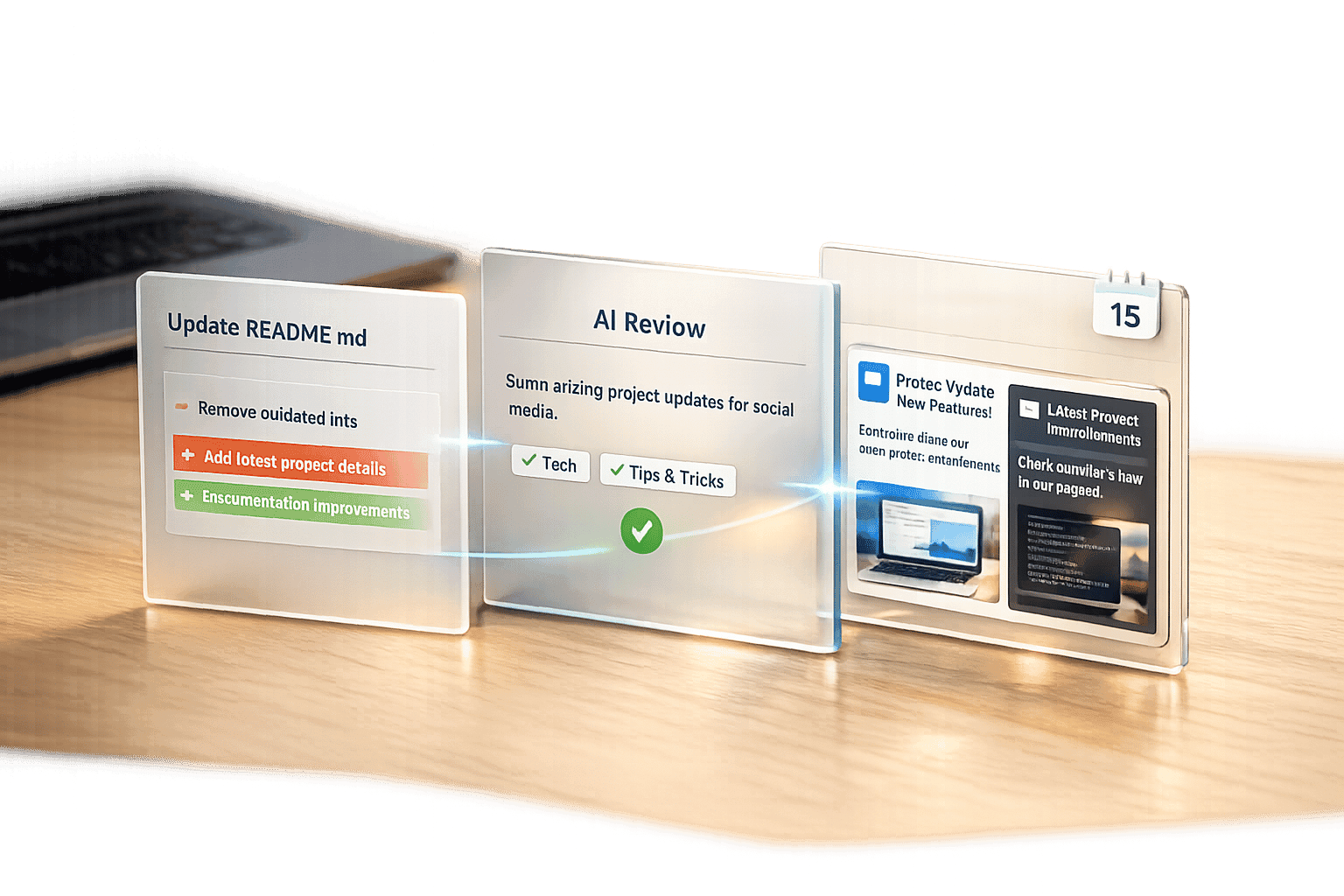
Turn GitHub Commits Into Social Posts
Developers often write detailed GitHub commit messages, but these updates rarely reach platforms like LinkedIn or X, where they could attract collaborators or employers. Sharing your progress publicly can make projects 3x more likely to succeed and find paying customers 6x faster. However, turning commits into social posts can be time-consuming and draining.
Posterly simplifies this process with its AI-powered Ship & Share feature. It converts your GitHub commits into polished social media posts for LinkedIn, X, and other platforms. Here's how it works:
- Connect GitHub and Social Accounts: Link your repositories and profiles securely.
- AI-Generated Posts: Commit messages are transformed into engaging updates with captions, hashtags, and visuals.
- Customisable Settings: Set filters to choose which commits to share and tweak content to match your tone.
- Smart Scheduling: Posts are automatically timed for peak engagement.
Plans start at just AED 25.70/month, with a 7-day trial for AED 3.67. Whether you're showcasing your work, building a portfolio, or managing a project, Posterly saves time and keeps your audience engaged.
::: @figure 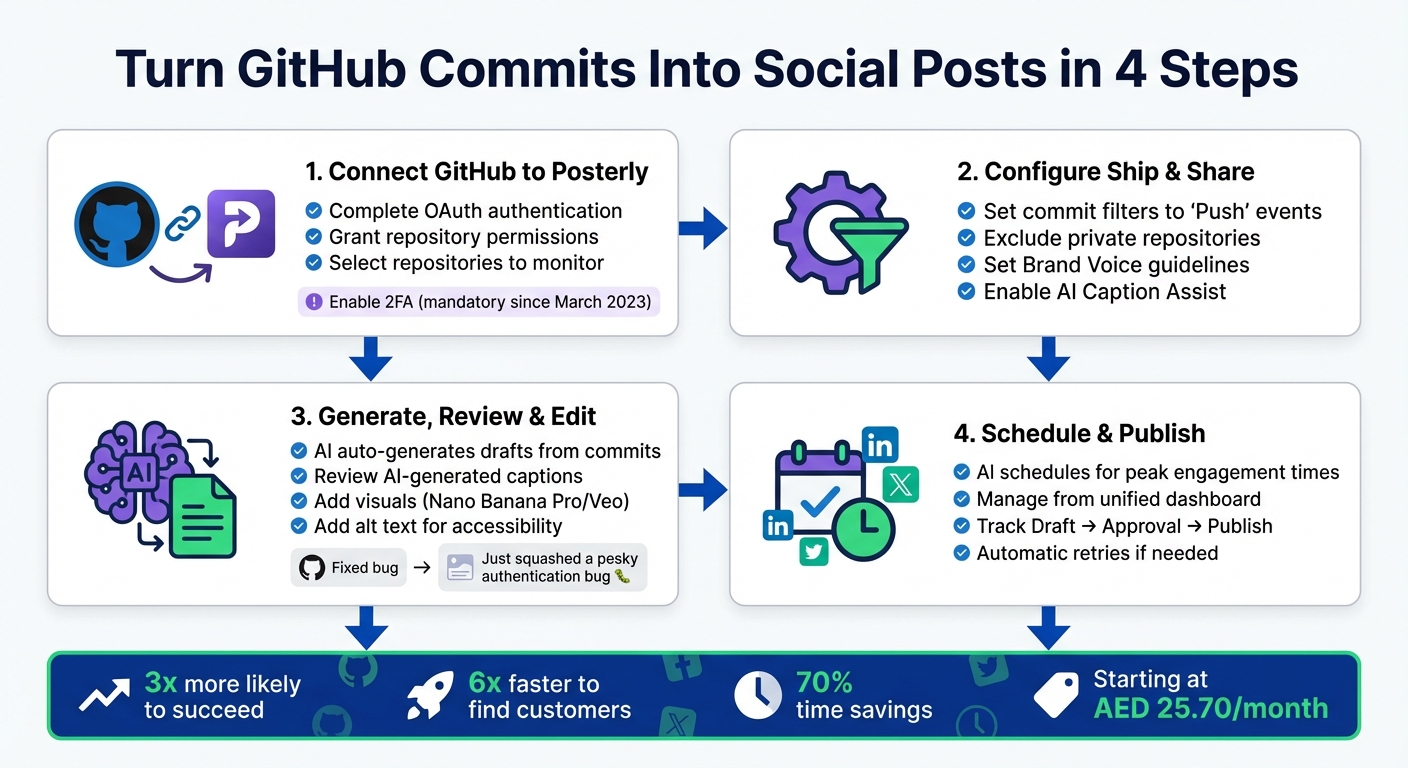 {How to Turn GitHub Commits Into Social Media Posts in 4 Steps}
:::
{How to Turn GitHub Commits Into Social Media Posts in 4 Steps}
:::
Automate Social Media Posts from Git Commits with AI! #shorts
::: @iframe https://www.youtube.com/embed/KdEnYQQj0SU :::
sbb-itb-f7b3a33
Prerequisites and Setup
Before you start turning GitHub commits into social media posts, you’ll need to set up the necessary accounts and tools. Ensuring you have the right permissions and access will make the integration process smooth and hassle-free.
Required Accounts and Tools
Here’s what you’ll need to get started:
- A GitHub account with repositories (public or private)
- A Posterly account with Ship & Share access
- Connected social media profiles for LinkedIn and X
All three are essential for the process to work.
When connecting GitHub, Posterly requires access to your repositories to detect and process commits. Make sure to grant all requested OAuth permissions for your GitHub account and social profiles. For LinkedIn Company Pages, your personal profile must have Super Admin rights, as only Admins or Owners can complete the connection. These permissions ensure your commits are captured accurately and converted into posts without issues.
If you face connection problems, try clearing your browser cache or switching to incognito mode. To keep your connected platforms active, ensure you publish content at least once every six weeks. Social platform access tokens generally refresh every 60 days, but Posterly handles this automatically wherever possible.
Now that you’ve got your accounts ready, let’s look at Posterly’s pricing options.
Posterly Pricing Overview
Posterly offers plans tailored to different needs, all of which include the Ship & Share feature. Here’s a breakdown:
- Starter Plan: AED 25.70/month. Includes five social accounts and one Ship & Share post per month.
- Pro Plan: AED 55/month. Covers 12 social accounts and allows for 10 Ship & Share posts monthly.
- Power User Plan: AED 91.75/month. Supports up to 30 social accounts with unlimited Ship & Share posts.
New users can test the platform with a seven-day trial for just AED 3.67 [1].
"The caption generation alone saves me hours every week. Game changer for my content workflow." – Alex Chen, Posterly user
Step 1: Connect GitHub to Posterly
Authentication and Integration
Start by heading to the Integrations section of your Posterly dashboard. Select GitHub and follow the steps to complete the secure OAuth authentication process.
When prompted by GitHub, grant all requested permissions. This is essential for Posterly to sync your commits seamlessly and convert them into marketing content automatically [2]. The integration requires full access to detect and interpret changes in your repositories [1].
Make sure you've enabled two-factor authentication (2FA) on GitHub, as it has been mandatory since March 2023 [3]. To avoid any hiccups, log in to your GitHub account in a separate browser tab before starting the integration process in Posterly [2].
Select Repositories to Monitor
After authentication, you'll see a list of your GitHub repositories. Choose the ones you’d like Posterly to monitor. Only commits from the repositories you select will trigger automated social media posts, so focus on the projects you want to highlight publicly.
Keep in mind the limits of your current plan when selecting repositories. For example:
- Starter Plan: 1 automated post per month.
- Pro Plan: 10 automated posts per month.
- Power User Plan: Unlimited posts [1].
If you're on the Starter plan and juggling multiple repositories, prioritise the one with the most impactful updates.
Once you've chosen your repositories, you can proceed to set up commit filters and customise your posts.
Step 2: Configure the Ship & Share Feature
Set Commit Filters
Head to the Ship & Share settings in your Posterly dashboard. This is where you decide which commits make it to your social media feed and which ones stay private.
Start by setting the event type filter to 'Push' events. This ensures that only completed updates are shared, keeping your social feed clean and relevant. Then, exclude private or work-in-progress repositories from the posting queue. Use the repository toggle switches to prevent internal-only projects or experimental code from being shared. This step is crucial for avoiding the accidental exposure of sensitive information on platforms like LinkedIn or X (formerly Twitter).
The Filters & Labels tool offers detailed control, letting you select exactly which repositories and code changes are monitored. This way, only noteworthy commit updates are transformed into posts that your audience will find engaging.
Once your filters are in place, you can focus on creating posts that resonate.
Customise Post Content
Posterly's AI Caption Assist takes your commit messages and turns them into engaging social media posts. It automatically sprinkles in emojis, hashtags, and captions tailored for each platform, making your updates more appealing and shareable.
Set your Brand Voice guidelines to ensure every post aligns with your tone and style. Before any post is published, take advantage of the Review & Edit phase to tweak the AI-generated content so it perfectly conveys your message. Since GitHub commits can be text-heavy, you might want to use Posterly's AI Images tool (powered by Nano Banana Pro) to create visuals that accompany your updates, adding an extra layer of engagement to your posts.
Step 3: Generate, Review, and Edit Posts
Auto-Generated Posts from Commits
With your filters set, Posterly takes over and converts your commits into draft posts automatically. By monitoring your selected repositories through GitHub Webhooks, Posterly detects push events and uses its GPT-4o engine to process commit details - like updates from README.md or CHANGELOG.md - and crafts drafts that are ready for social media sharing [4][5].
Instead of simply copying commit messages, the AI summarises changes in a way that resonates with a broader audience. For instance, instead of "Fixed bug in auth module", it might create: "Just squashed a pesky authentication bug 🐛. Our login experience is now smoother than ever! #WebDev #CodeQuality." This ensures your posts are engaging and easy to understand, even for those without a technical background.
Each draft lands in your Posterly dashboard, waiting for your review. The AI adjusts the tone and format based on the platform you're targeting - for example, crafting a short, punchy update for X (formerly Twitter) to fit the 277-character limit [7], or a more detailed post for LinkedIn.
Once you're happy with the draft, you can move on to enhance it with visuals for even greater impact.
Edit and Add Visuals
After reviewing the drafts, refine them to align with your brand's voice. Edit the text, tweak hashtags, or rewrite sections as needed to ensure clarity and consistency.
To make your posts stand out, add visuals using tools like Nano Banana Pro or Veo. Nano Banana Pro helps you create custom graphics that match your commit updates, while Veo can generate short videos or reels showcasing your development progress [4]. Including visuals is key - industry benchmarks suggest that content with an engagement rate above 5% performs exceptionally well [6].
Lastly, don’t forget accessibility. Add alt text to all your images to ensure your posts can be enjoyed by everyone, including those using screen readers [7].
Step 4: Schedule and Publish Posts
Smart Scheduling for Best Times
Getting the timing right for your posts can make all the difference. Posterly's AI takes the guesswork out of the equation by analysing engagement patterns to pinpoint when your audience is most active. This means your GitHub updates are automatically scheduled for peak engagement times, maximising visibility. For example, you can simply type, "Schedule my latest commit update for LinkedIn tomorrow morning," and the system will take care of the rest.
If you're targeting professional networks like LinkedIn in the UAE, weekday mornings around 9:00 GST often see high engagement. Meanwhile, posts on X (formerly Twitter) tend to perform better during the evening hours.
"AI ensures you post at optimal times automatically, keeping your audience engaged and growing." - Posterly [8]
Once your posts are scheduled, you can manage everything from a single, streamlined dashboard.
Manage Posts from One Dashboard
Posterly's unified dashboard gives you a bird's-eye view of all your scheduled updates. Whether you prefer a calendar, list, or table layout, the interface makes it easy to monitor your posts' progress. You can adjust timings with a simple drag-and-drop feature or make last-minute tweaks to captions and visuals. Thanks to Posterly's reliable infrastructure, your posts will publish exactly when planned, with automatic retries if needed.
From Draft to Approval, Schedule, and Publish, you can track every stage of your posts' lifecycle. Bulk management tools also allow you to pause or reschedule multiple campaigns in seconds, offering flexibility and control.
"The queue monitoring gives me peace of mind. I know my posts will go out exactly when they should." - James Park, Product Hunt Reviewer [8]
Conclusion
Sharing your GitHub commits on social media doesn't have to eat up your time. Thanks to Posterly's Ship & Share feature, the process is fully automated - from identifying commits to crafting captions tailored for each platform. This means you can spend more time coding and less time worrying about social media posts.
Take it from Marcus Johnson, a solo creator, who shared that Posterly reduced his scheduling time by 70% while managing five accounts. Similarly, developer Alex Chen highlighted that the AI-generated captions save him hours every week[1]. These time-savings make it easier to maintain a consistent "build in public" presence.
By automating updates, you’re not just saving time - you’re also boosting your credibility and keeping your audience engaged. The unified dashboard gives you full control over your content, from drafting to publishing, with smart scheduling to maximise reach. Whether you're announcing a new feature on LinkedIn or sharing a quick update on X, Posterly ensures your posts connect with your audience.
With pricing starting at just AED 25.70 per month, Posterly provides an affordable way for developers and teams to streamline their social media efforts without stretching their budget.
FAQs
::: faq
Will Posterly share my private repo commits?
Posterly ensures that your private GitHub repository commits remain confidential unless you explicitly grant permission to share them. The platform works seamlessly with GitHub to streamline content creation but keeps user privacy at the forefront. Only the content you explicitly approve for publication will be shared. For extra peace of mind, you can always check Posterly's privacy policy and settings to confirm that your private repositories and commits are protected. :::
::: faq
How do I stop WIP commits from posting?
To stop WIP (Work In Progress) commits from being posted automatically, tweak the settings in your automation tool. Most tools offer filtering options to skip commits marked as WIP or those with certain keywords. For instance, platforms like Posterly let you set up custom filters and rules for commit messages or branches, ensuring that only completed commits are shared. Take a look at your tool’s configuration options to set this up. :::
::: faq
Can I review posts before they publish?
Posterly allows you to review your posts before they go live. With the preview feature, you can see exactly how your content will look on each platform. This ensures the formatting and appearance are spot-on before publishing. :::
Related Articles
How to Create 30 Days of Social Media Content Using AI Images in posterly
A practical guide to generating a full month of original social media images with posterly's AI image tool, writing captions for each one, and scheduling everything in a single session.
Read moreHow to Find the Best Time to Post on Social Media Using posterly's AI Scheduler
Stop guessing when to post. This guide explains how posterly's AI Scheduler analyses your audience activity and automatically picks the best posting times so your content gets seen by more people.
Read moreHow to Manage Google Business Reviews on Autopilot With posterly
A step-by-step guide to responding to Google reviews with AI, automatically requesting new reviews from customers, auditing your profile for local SEO, and turning your best reviews into social media content.
Read moreHow to Manage Multiple Client Social Media Accounts With posterly Workspaces
A practical guide for agencies and teams on using posterly Workspaces to organise client accounts, assign roles, get content approved, and schedule posts across dozens of social profiles without things getting messy.
Read more